Install the widget on your website
To show the widget, paste a short snippet where it should appear on the page. The widget adjusts to the width and height of the space on its own.
Copy the code
Open the code
In the widget editor, click Share widget. In the Widgets list, use the Embed code option in the widget’s menu.
Copy it
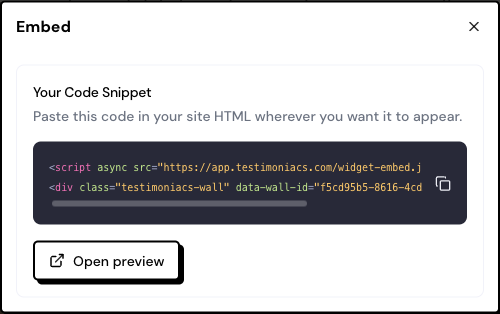
Under Your Code Snippet, copy the code. It has two lines:
<script async src="https://app.testimoniacs.com/widget-embed.js"></script>
<div class="testimoniacs-wall" data-wall-id="YOUR-WIDGET-ID"></div>
Paste it into your website
Paste the code into an HTML block where the widget should appear and publish your website.
Where to paste it on each platform
WordPress
In the block editor, add a Custom HTML block and paste the code.
The widget also works on websites built with React, Next.js and other single-page frameworks, including when the visitor moves to another page without reloading.
How the widget works on your website
- In the Masonry layout, it shows 12 testimonials at a time; the visitor clicks Load more to see the next ones. In Carousel, it loads up to 24 testimonials.
- When the visitor clicks a testimonial, it opens larger in a window, without leaving your website.
- Changes saved in the editor reach your website without changing the code.
- If you turn off Published, the widget disappears from your website.
Frequently asked questions
I pasted the code and nothing appears.
Check that the widget is published and has testimonials in the Published option of the preview. Also check that your platform didn’t remove the script line when saving.
Can I use the same widget on several pages?
Yes. Paste the same code on as many pages as you want.
Can I see how many people viewed the widget?
Not yet. Testimoniacs doesn’t track widget views.