Tags and sender details
Two Settings tabs handle what applies to the whole space: Tags and Campaigns. Editors, Admins and the Owner can access both.
Tags
Here you see and organize all of the space’s tags, grouped by category, with search.
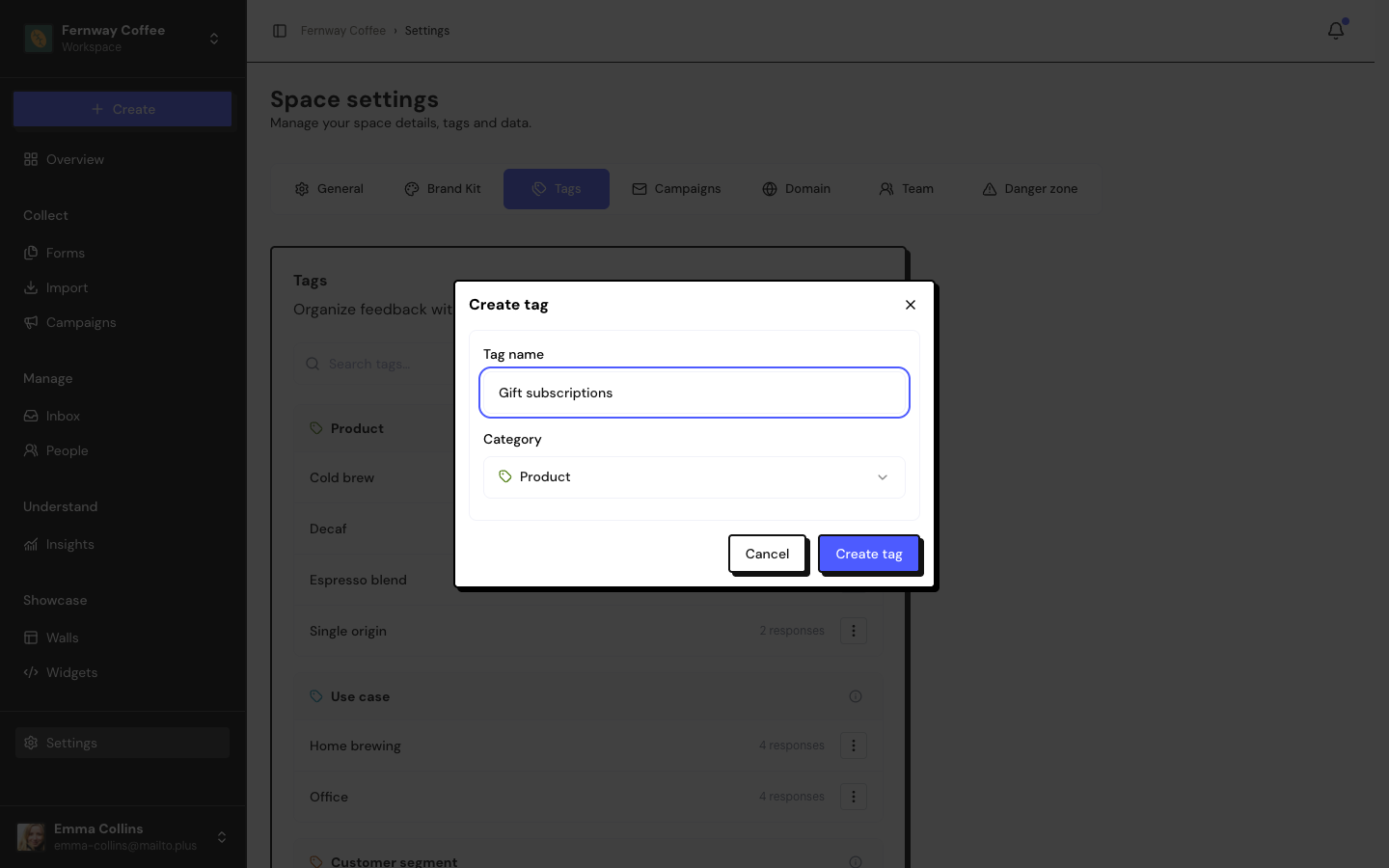
- Create tag: fill in Tag name (up to 60 characters, unique within the space) and choose the Category: Product, Service, Industry, Use case, Customer segment, Outcome or Other.
- In the tag’s menu, Edit shows where it’s used: responses, forms, settings, people and segments.
- Delete removes the tag from everything and from the filters that used it. Responses and testimonials stay.
Campaigns: sender settings
Before sending email invitations, fill in Sender settings. The month’s campaign email quota appears at the top.
| Field | What it’s for |
|---|---|
| Company identity | The company name in the invitations. |
| Postal address | Required. It appears in the invitations’ footer, as bulk email rules require. |
| Sender name | Who appears as the sender. |
| Reply-to email | Where customers’ replies go. |
| Workspace timezone | The time zone used when scheduling campaigns. |
Saving doesn’t send anything. If you leave with unsaved changes, the app asks you to confirm.
Frequently asked questions
Can I add a signature to the email?
There is no signature field. Write your sign-off in the campaign text.
Can I change a tag’s category?
Yes. Use Edit in the tag’s menu.
Does deleting a tag delete the testimonials?
No. Only the tag is removed from the testimonials, people and filters.
Related articles
Last updated on