Space settings
In Settings, the last item in the space’s sidebar, you’ll find the space’s details, the brand, the domain, the team, the tags and the campaign sender.
Who sees each tab
| Tab | Who can access |
|---|---|
| General | Admin and Owner |
| Brand Kit, Tags and Campaigns | Editor, Admin and Owner |
| Domain and Team | Admin and Owner |
| Danger zone | Only the Owner |
The Sharer role doesn’t see Settings. Editors land directly on the Brand Kit.
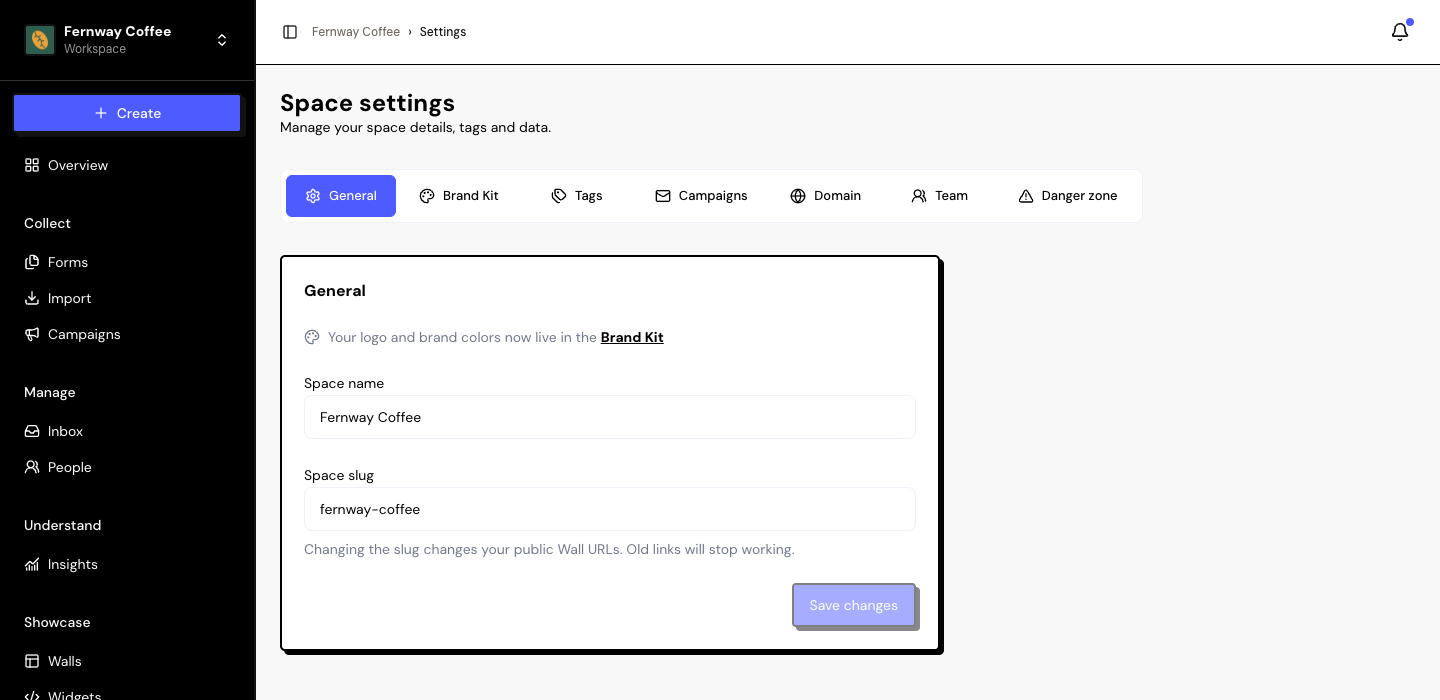
General: name and slug
- Space name: required, up to 200 characters.
- Space slug: lowercase letters, numbers and hyphens, up to 60 characters. It appears in the links to your Walls and case studies:
/s/your-slug/....
Click Save changes. The button only becomes active when something has changed.
Changing the slug breaks Wall and case study links you have already shared. There is no redirect. Links to forms, testimonials and campaign invitations don’t change.
Language of public pages
The space doesn’t have a language of its own. Forms, Walls, Widgets and case studies appear in the language set in the profile of the space’s owner, in Account settings › Profile.
Frequently asked questions
Where do I change the space’s logo?
In the Brand Kit. The browser tab icon is in Domain › Favicon.
I got “This space slug is already in use”.
Another space already uses that slug. Pick a different one, for example your company name plus something extra.
Why can’t I see the General tab?
It’s for Admins and the Owner. Ask one of them to change your role in Team.