Share the form
After saving the form, send the link to your customers. The Share Form window brings together the link, the social media buttons, the QR code and the code for embedding on your website.
Open sharing
The link uses the slug that is saved. If you changed the slug in the editor, click Save changes before copying the link.
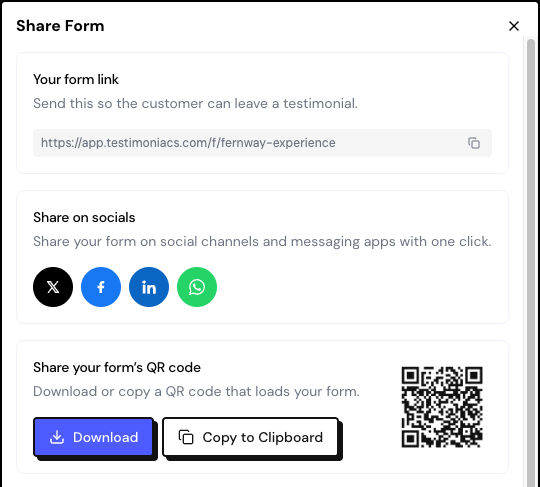
The sharing options
Link
In Your form link, click the copy button and paste the link into an email, a message or your website.
The link has the format /f/your-slug. If the space has a custom domain, the link uses that domain.
To show the form inside your website, use Embed on your website, in the same window.
Frequently asked questions
I changed the slug and the old link stopped working.
That’s expected: changing the slug invalidates links you already shared. Send the new link to anyone who still has to respond.
The QR code doesn’t copy.
Some browsers don’t allow copying images. Use Download and insert the PNG file.
Can someone with the Sharer role share?
Yes. The Sharer role views and shares forms, but doesn’t edit them.