Create, publish and share a wall
A wall (Wall of Love) is a public page with only your testimonials, in your design. You send the link to customers, add it to your website’s menu or use a custom domain.
Walls and widgets combined have a limit per account, depending on your plan. See Plans and limits.
Create a wall
Open Walls
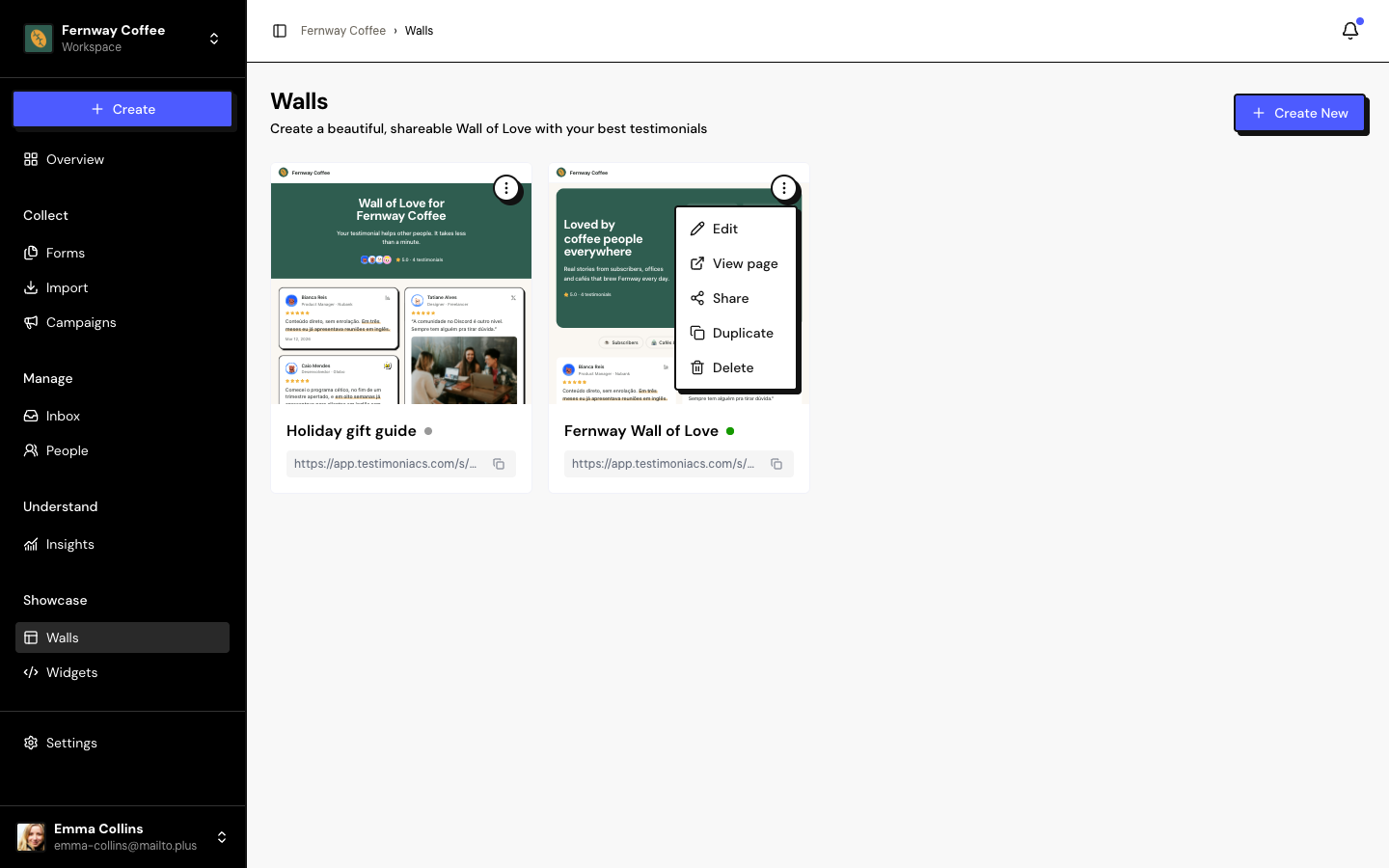
In the sidebar, under Showcase, click Walls and then Create New.
Give it a name
Type the Name and click Create Wall. The editor opens right after.
Choose the testimonials and the look
In Testimonial Wall, choose which testimonials appear. Then adjust Design, Header and Hero.
Save
Click Save changes.
A new wall is published from the start. If you don’t want it visible yet, turn off Published in the page settings before sharing the link.
Publish and change the link
In the editor, click the gear, Page settings:
| Option | What it does |
|---|---|
| Page slug | The end of the link: /s/your-space/walls/your-slug. Lowercase letters, numbers and hyphens, up to 60 characters. |
| Published | On, the page is visible to everyone. Off, anyone who opens the link sees that the page isn’t available. |
| Delete Page | Removes the wall. The testimonials are kept. |
Changes to the settings are saved with Save changes, at the top of the editor.
Changing the slug breaks links you’ve already shared. The old link isn’t redirected.
With a custom domain (paid plans), the wall uses your domain, and the domain’s main address opens the most recently updated wall.
SEO
In the SEO section of the editor, fill in SEO Title, Meta Description and SEO Keywords. Without a title, the page uses the hero title; without a description, it uses the subtitle. On social media, the preview image is the cover image or, without a cover, the logo.
The wall can appear in Google search results.
Share
In the editor, click the share icon. Or, in the list, use the ⋮ menu › Share:
- Your page link, with Copy and Open page.
- Share on socials: X, Facebook, LinkedIn and WhatsApp.
To put testimonials inside your website, use a widget.
Duplicate and delete
In the list’s ⋮ menu, Duplicate creates a copy with the same look and the same selection, and a new link. Delete removes the wall for good and frees up a slot in your plan limit.
Frequently asked questions
I saved and the wall didn’t change.
The public page can take about a minute to show the changes. Reload after a few moments.
How do I rename the wall?
In the editor, click the name at the top, type the new name and save.
Who can create walls?
Editor, Admin and Owner. The Sharer role sees and shares walls, but can’t edit them.