Brand Kit and import from your website
The Brand Kit keeps the space’s visual identity in one place. Forms, Walls, Widgets and case studies can follow the kit: when you change a color or a logo, they change with it.
The full Brand Kit is on the paid plans. On the Free plan, you set a default logo and a primary color. See Plans and limits.
What goes in the kit
| Item | Details |
|---|---|
| Logos | Up to 20. PNG, JPEG or WebP, up to 5 MB, ideally 1080×1080. One of them is the default (Make default). |
| Colors | Up to 30. Each color can have a role: Primary, Text, Highlight, Stars or Background. |
| Fonts | Up to 10, with the Heading or Body role. Choose a Google font or a Custom font (Family and the URL of a CSS or .woff2 file, with https). |
| Thank-you videos | Up to 20. MP4 or WebM, up to 50 MB. They appear after the customer sends a testimonial. |
Each role applies to one item at a time. When you give the Primary role to a color, the color that had that role loses it.
A saved logo or video can’t have its file replaced. To change it, add a new item and give it the role or make it the default.
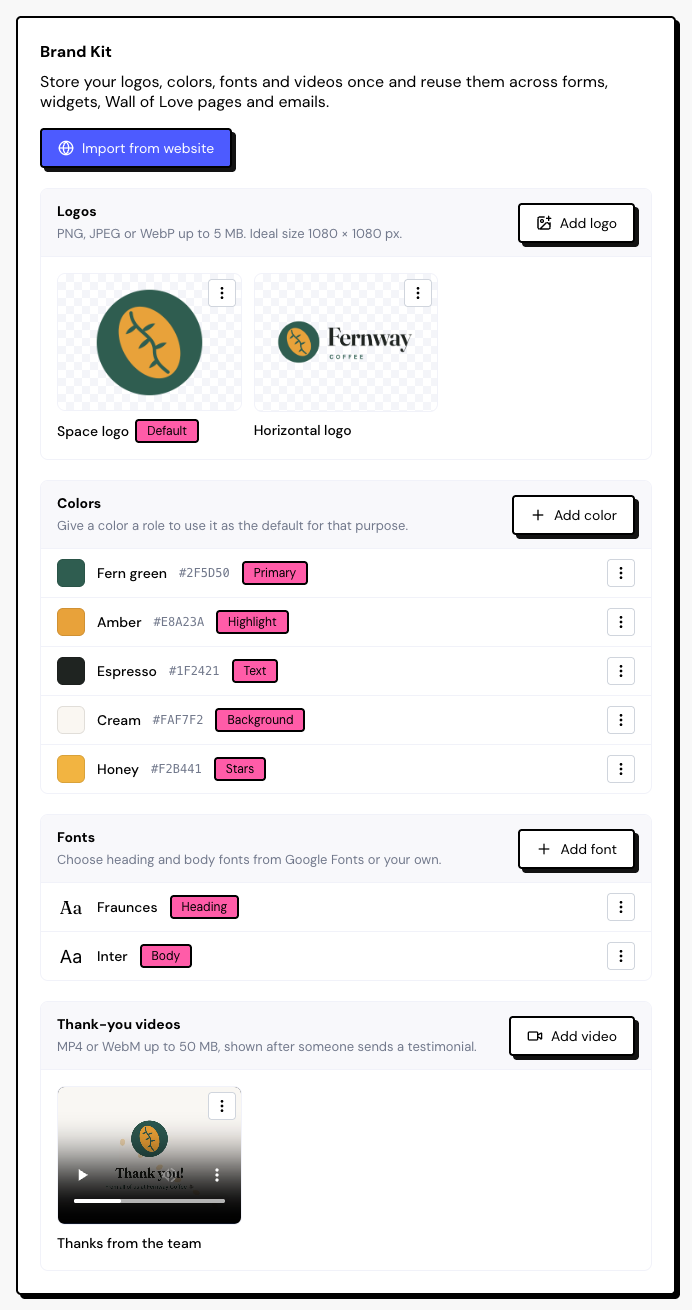
How the rest of the app follows the kit
In the form, Wall, Widget and case study editors, the kit’s colors and fonts appear under Your brand colors. Click one to link it; click it again to unlink it. Save to Brand Kit adds a color you created in the editor to the kit.
- Forms: primary color, logo, fonts, stars and thank-you video.
- Widgets: primary, font, highlight, stars, text and background.
- Walls: logo, primary, highlight, font, stars, text and background, including the header.
- Case studies: highlight color.
On the paid plans, what you create is linked to the kit from the start. Logos and videos uploaded in a form or Wall are added to the kit automatically.
Import from your website
On the paid plans, AI reads your website and suggests logos, colors and fonts.
Enter the website
Click Import from website, fill in the Website address and click Read website.
Pick the suggestions
Select what you want and click Add to Brand Kit. Nothing is replaced, unless you give a suggestion a role that is already in use.
Imports have a monthly quota that resets on the 1st. If the AI fails, the suggestions come from the page’s styles and the import doesn’t count toward the quota.
Delete an item
When you delete an item, the app shows how many places use it. Those places keep their current look but stop following the kit.
Frequently asked questions
I went back to the Free plan. Do I lose the Brand Kit?
No. The items and links stay. Changing the default logo or the primary color still updates whatever is linked to them.
I changed a color and a Wall didn’t change.
That Wall isn’t linked to the kit color. In the Wall editor, click the color under Your brand colors to link it.
Does the Brand Kit change emails?
On the paid plans, emails use the default logo and the primary color.