Collect video testimonials
Testimonial forms can receive video responses. The customer records right in the browser, on a computer or a phone, without installing anything.
The maximum video length and the number of videos per account depend on your plan. See the numbers in Plans and limits.
Turn on video for a question
Open the question
In the form editor, open Questions and click the question that will receive video. It’s usually the primary question, the last one.
Choose the collection type
In Collection type, choose Video or Both.
Set the length
In Video response duration, choose the maximum time. The options go from 30 seconds to 10 minutes; the ones over your plan’s limit don’t appear.
Save
Click Save changes.
| Collection type | What the customer sees |
|---|---|
| Text | Only the text box. |
| Video | Only the Record a video button. |
| Both | Record a video or Respond with text. The customer chooses. |
How the customer records
Turns on the camera
They click Record a video and Enable camera and microphone, and allow access in the browser. If they have more than one camera or microphone, they can choose which one to use.
Records
They click Start recording. A timer shows the time, and the recording stops on its own when it reaches the limit. With Show notes, they can keep talking points in view while they speak, like a teleprompter.
Reviews and submits
They watch the video and choose Use video or Record again. After submitting, the form moves on to the next step.
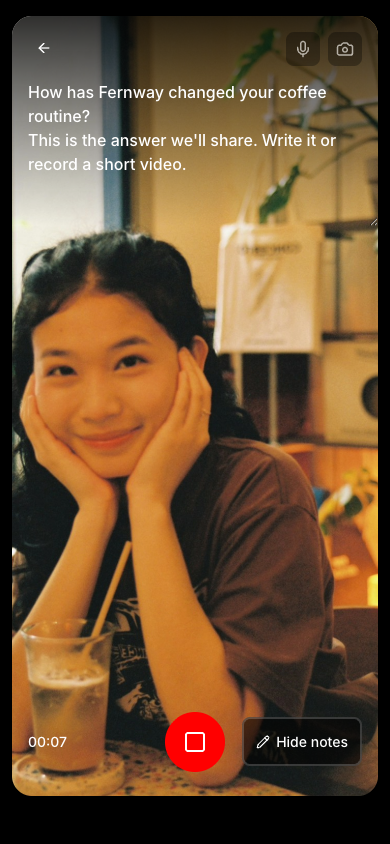
The customer records through the browser. Currently it isn’t possible to upload a video file that was already recorded.
When the video quota runs out
If your account reaches your plan’s video limit, your forms start accepting text only. The customer sees a notice that the form isn’t accepting new videos at the moment, but can still submit a written testimonial. No testimonial is lost. To receive videos again, change plans.
Frequently asked questions
The customer says the camera doesn’t work.
The most common causes are: camera access was blocked in the browser, another app is using the camera or the browser is outdated. Ask them to allow the camera in the browser settings, close other video apps or try another browser. If they prefer, they can respond with text when the collection type is Both.
Can I receive images along with the testimonial?
Yes. Turn on Collect image in the question. The customer can attach up to 5 images per response.
Does changing the length affect videos already received?
No. The new length applies to future recordings.