Organize with tags
Tags help you sort testimonials by product, industry, outcome and anything else that makes sense. Then you use the tags to choose what appears on Walls and Widgets and to build segments in People.
Tag categories
Every tag belongs to a category:
| Category | What it’s for |
|---|---|
| Product | Products mentioned in the feedback. |
| Service | Services purchased or reviewed. |
| Industry | The customer’s industry. |
| Use case | How the customer uses the solution. |
| Customer segment | The customer’s profile or size. |
| Outcome | Outcomes achieved, such as time saved or higher sales. |
| Other | Anything that doesn’t fit the others. |
Tag responses
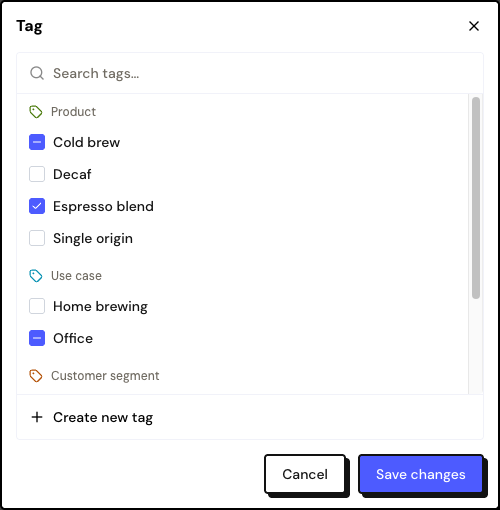
Create a tag
In any tag picker, click + Create new tag, type the Tag name (up to 60 characters) and choose the Category. The new tag is already checked. Names can’t repeat within the same space.
Manage the space’s tags
In Settings › Tags you see all the tags, grouped by category, with how many responses use each one.
- + Create tag: creates a new tag.
- ⋮ menu › Edit: changes the name or category. The window shows where the tag is used: responses, forms, Wall and Widget filters, people and segments.
- ⋮ menu › Delete: removes the tag and its references. Responses and testimonials are kept.
The same tag catalog works for responses and for people. One tag can mark a response in the Inbox and a contact in People.
Frequently asked questions
Does the AI add tags on its own?
No. Tags come from you, from the form’s automatic tags or from the tags chosen in an import.
I deleted a tag and a segment stopped working.
Segments that used the tag are marked as invalid. Open the segment in People and adjust the conditions.
Can I filter the Inbox by tag?
Not yet. Use tags in the selection of Walls and Widgets, or in a segment in People.