Edit the steps and questions
The editor shows the form’s steps on the left and a preview on the right. Everything you change shows up in the preview right away, but it only reaches the public form when you click Save changes.
The editor doesn’t save on its own. If you try to leave with pending changes, the app asks Leave without saving your changes?
The form’s steps
The customer goes through the steps in the order below. Turned-off steps are skipped.
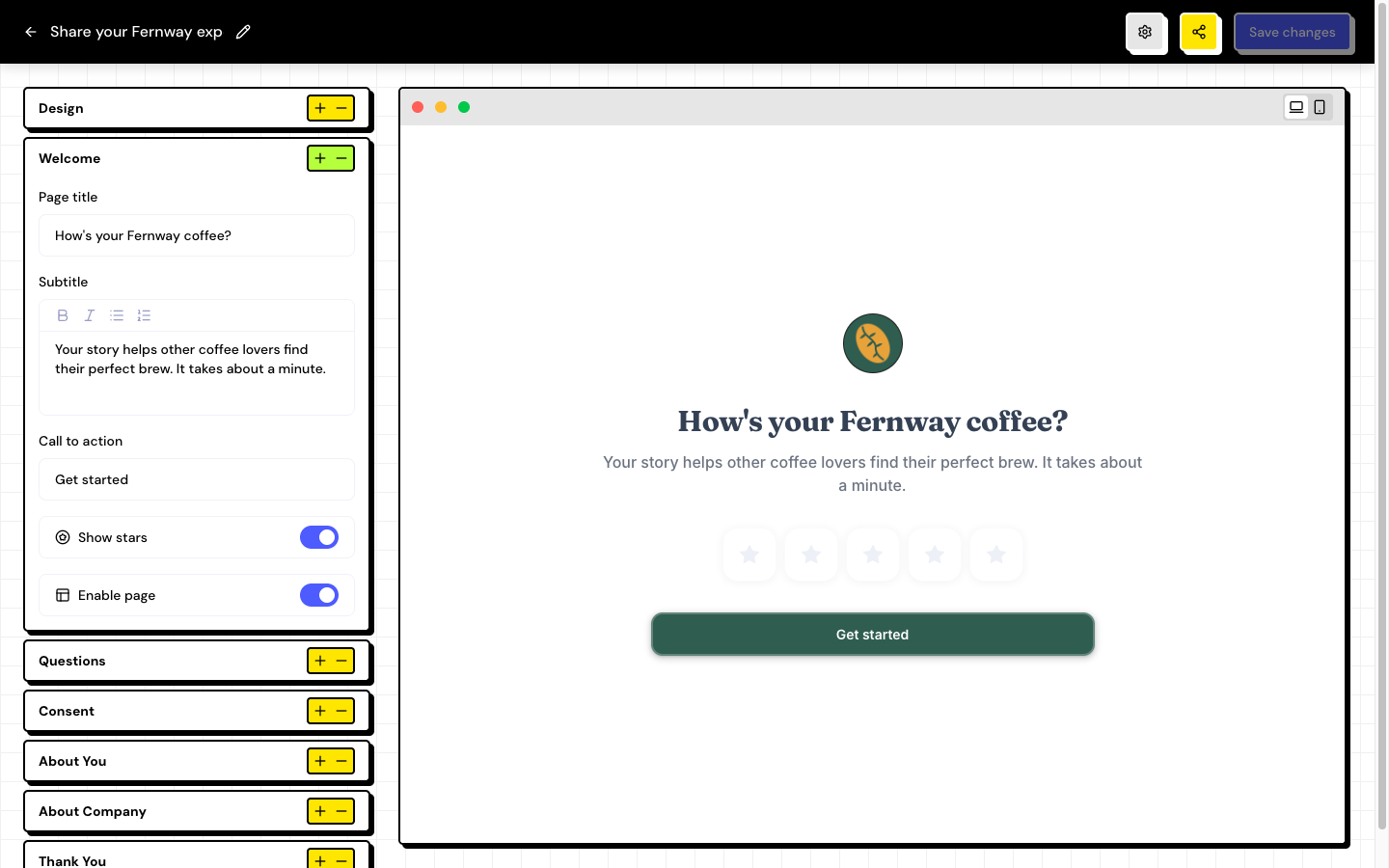
In the editor, each step is a section that opens and closes. The Design section is at the top and applies to the whole form.
Edit a page
Almost every page has the same fields:
| Field | What it changes |
|---|---|
| Page title | The step’s large title. |
| Subtitle | The text below the title. Accepts bold, italics and lists. |
| Call to action | The text of the button that leads to the next step. |
| Enable page | Shows or hides the step. Welcome, Consent, About You and About Company can be turned off. Thank You always appears. |
Click a text in the preview to go straight to its field in the editor. Use Mobile preview to see how the form looks on a phone.
Stars on the welcome page
In Welcome, turn on Show stars to ask for a rating from 1 to 5 stars. With the option on, the customer has to choose at least one star to continue. The star color is in Design.
Set up the questions
Open Questions
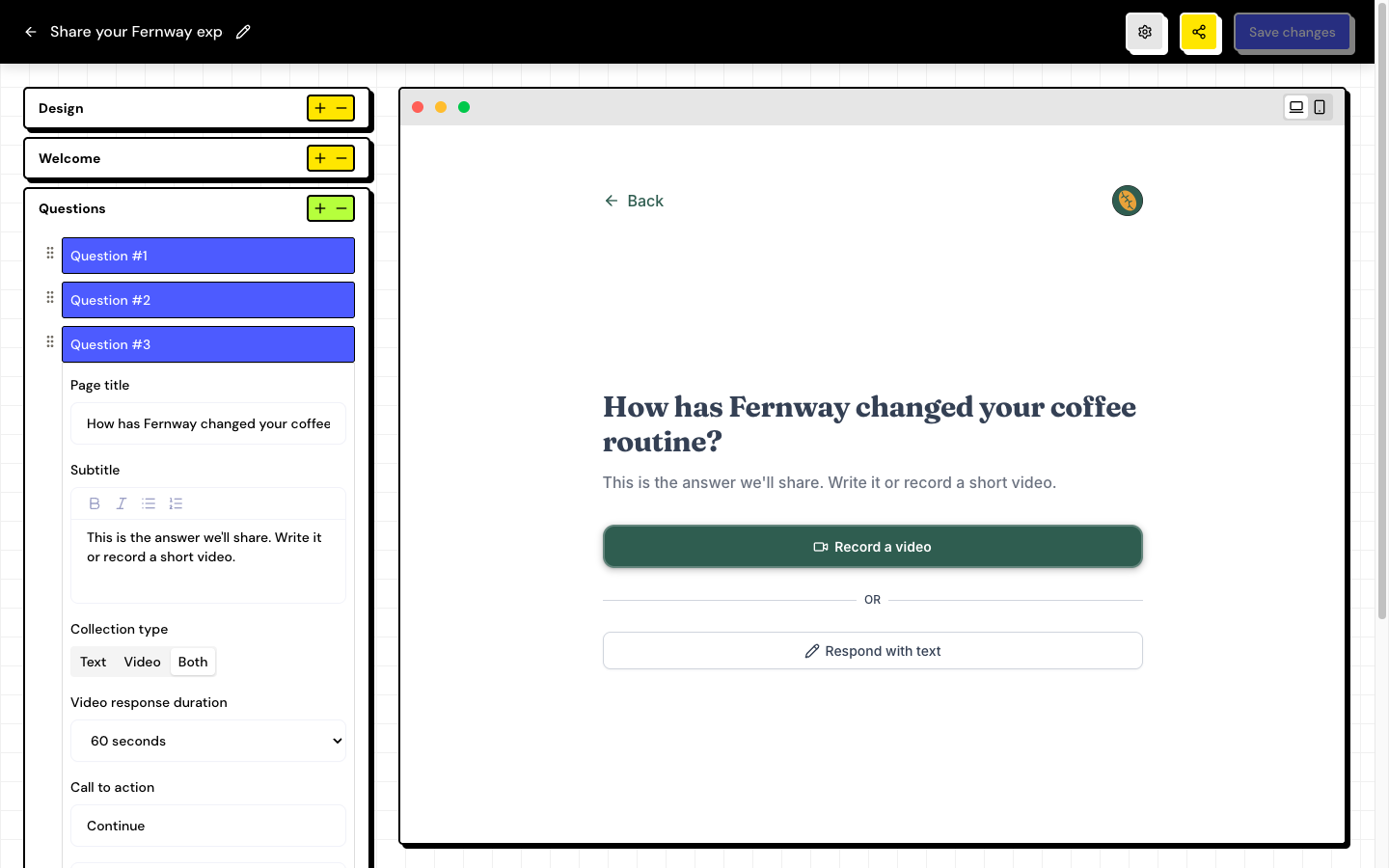
Each question appears as Question #1, Question #2 and so on.
Add a question
Click Add question. The form accepts up to 6 questions.
Adjust the fields
Write the title and the subtitle. In testimonial forms, also choose the Collection type (Text, Video or Both) and whether you want to Collect image (up to 5 images per response).
Reorder and save
Drag the questions to change the order. Click Save changes.
The primary question
In a testimonial form, the last question is the primary one. Its answer becomes the text or video of the testimonial that appears on Walls and Widgets. That’s why it is always required and can’t be turned off or deleted. In the Inbox, it is marked as Primary.
When you drag the questions, whichever ends up last becomes the primary one. Check the order before saving.
The other questions have Enable page, Required and Delete. In an NPS survey, questions are text only, all of them can be deleted and none is primary.
Frequently asked questions
I changed the form, but the public link is still the same. Why?
Changes only apply after you click Save changes. Check that the Changes saved message appeared.
Can I create a multiple-choice question?
Questions accept text, video and images. For lists, checkboxes or single choice, use the additional fields in About You or About Company.
What happens if the customer leaves a required question blank?
They see Please answer this question before continuing and can’t move on until they answer.