Create an account and run the guided setup
Creating a Testimoniacs account is free and doesn’t ask for a card. Right after you sign up, a guided setup creates your first space and your first testimonial form.
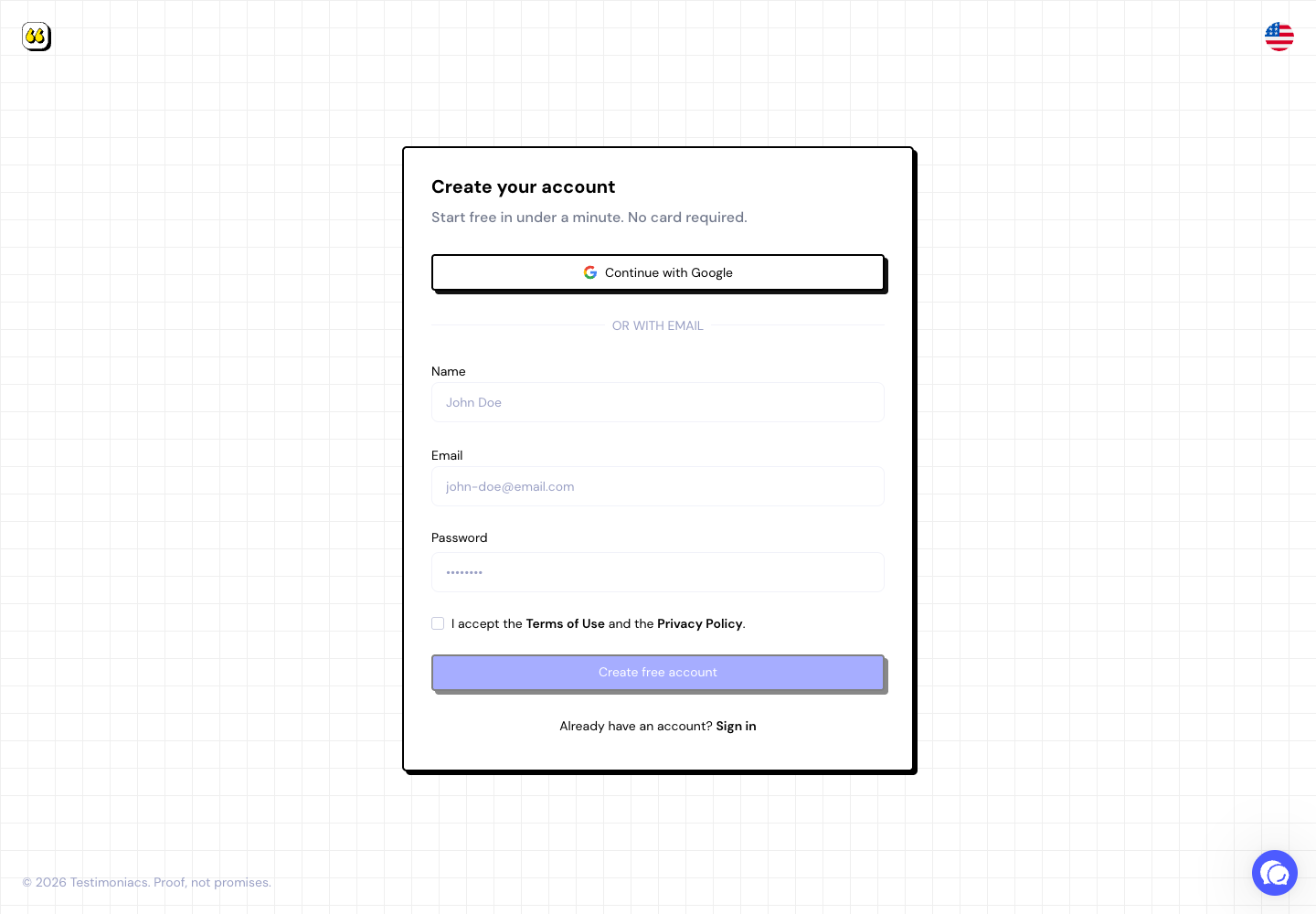
Create your account
Go to app.testimoniacs.com/auth and choose how to sign in:
Your password must be at least 8 characters long, with letters and numbers. If the confirmation email doesn’t arrive, check your spam folder or use Resend email in the Confirm your account window.
Run the guided setup
The first time you sign in, the app opens the guided setup. It has three steps:
Welcome to Testimoniacs
Type your company or product name and click Continue. That name becomes your first space.
Make it look like you
Upload your logo, pick your brand color and say what you want to collect: Text, Video or Both (the customer chooses). Click Create my form.
Your form is ready
Copy the form link and send it to happy customers. Use See it as your customer to open the form the way your customer will see it. If you already have testimonials, use Import a file or Add one manually. To finish, click Go to dashboard.
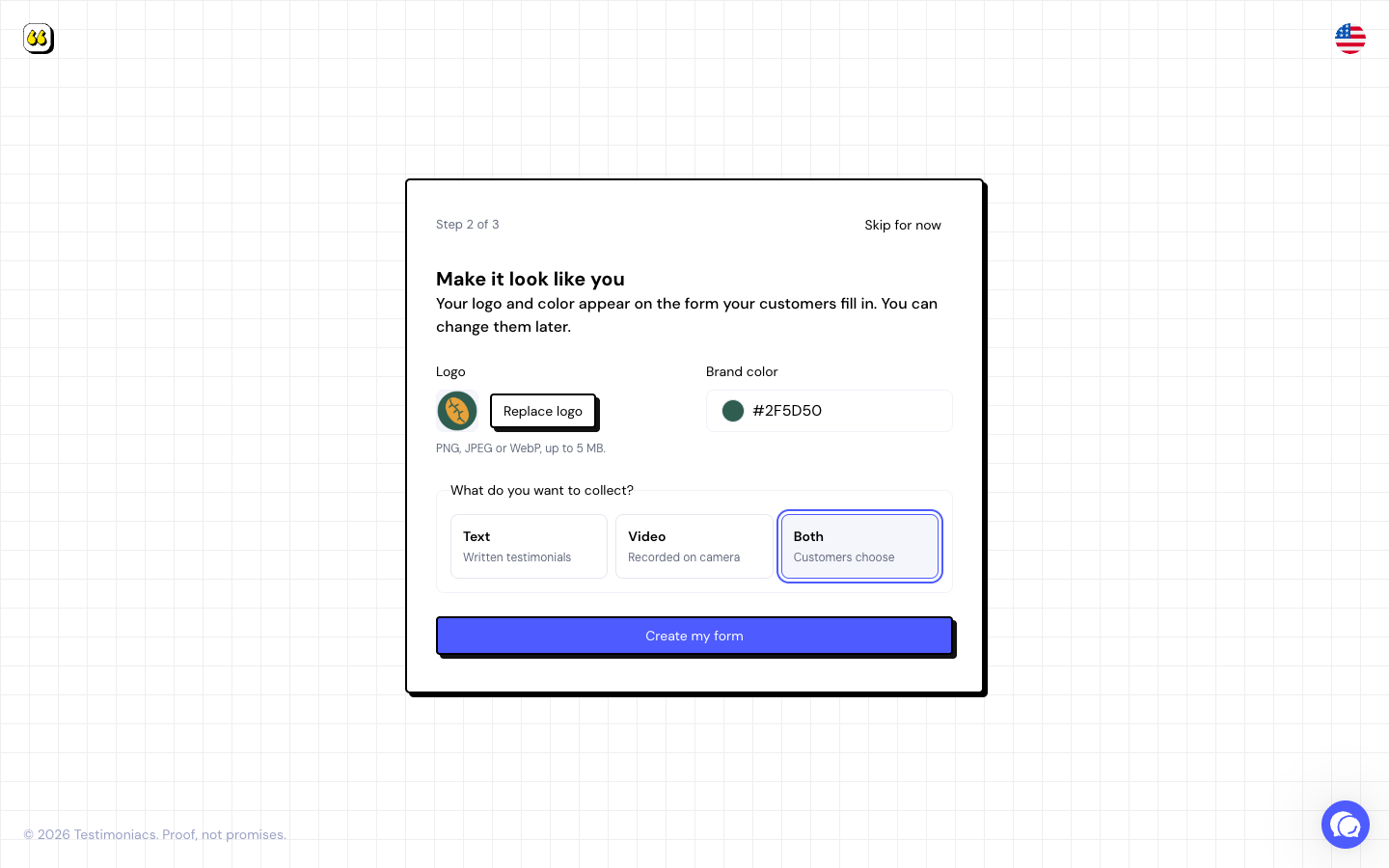
You can change the logo, color and questions later in the form editor. Responses arrive in the Inbox.
Frequently asked questions
Can I skip the guided setup?
Yes. Click Skip for now at the top of the screen. You can create spaces and forms later in the app.
I created my account with email. Can I sign in with Google later?
Yes. In Settings › Login, connect your Google account. You need to keep at least one sign-in method active.
I didn’t get the confirmation email.
Check your spam folder and use Resend email. If you see “Too many attempts”, wait a few minutes and try again.
Next step: learn How the app is organized.