How the app is organized
Testimoniacs separates what belongs to your account (profile, login and subscription) from what belongs to each space: the forms, testimonials, Walls and Widgets of a brand or website. This article shows where everything lives.
Tip: the sidebar follows the path of a testimonial: Collect → Manage → Understand → Showcase. The articles in this Help Center use the same groups.
Account and spaces
A space holds everything for one brand, product or website. You can have more than one space, depending on your plan, and work in other people’s spaces when they invite you.
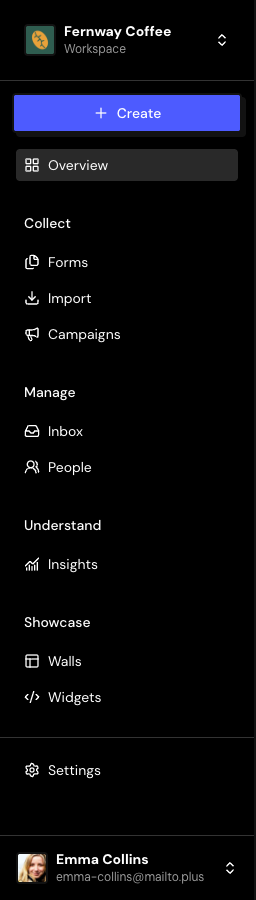
The sidebar
Inside a space, the sidebar shows the sections grouped by what you want to do:
| Group | Sections | What it’s for |
|---|---|---|
| — | Overview | Space activity and next actions. |
| Collect | Forms, Import, Campaigns | Receive testimonials and NPS responses, bring in the ones you already have and invite customers by email. |
| Manage | Inbox, People | Approve and organize testimonials and keep track of who sent them. |
| Understand | Insights | See the summary, satisfaction (NPS) and the topics customers mention. |
| Showcase | Walls, Widgets | Publish testimonials on a page of their own or on your website. |
| — | Settings | The space’s details, brand, domain, team and tags. |
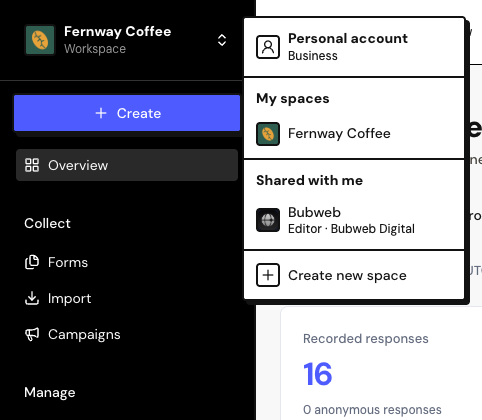
Switch spaces or create a new one
Open the top menu
Click the name of the current space at the top of the sidebar.
Choose the space
Your spaces appear under My spaces, and other people’s under Shared with me. Personal account takes you to the list of all your spaces.
Or create a new one
Click Create new space, give it a name and confirm. The number of spaces depends on your plan.
Roles and what each one sees
In a shared space, the menu shows only the sections your role allows.
| Role | What they can do |
|---|---|
| Owner | Everything, including the subscription and deleting the space. |
| Admin | Invites and removes people and edits everything, except billing and deleting the space. |
| Editor | Creates and edits content: Inbox, forms, Walls, Widgets, people, campaigns and insights. |
| Sharer | Views and shares forms, Walls and Widgets. |
If you open a link to a page your role doesn’t include, the app shows “You can’t open this page”. Ask an Admin or the Owner to change your role.
Settings: for the space and for your account
For the space
In Settings, at the bottom of the space’s sidebar:
- General: the space’s name, slug and category.
- Brand Kit and Domain: the brand and the address of your public pages.
- Team: invites and roles.
- Tags and Campaigns: organization and sending emails.
- Danger zone: delete the space.
Frequently asked questions
Do plan limits apply per space or per account?
Per account: they add up all the spaces you own. The numbers are in Plans and limits.
Can I change someone’s role after inviting them?
Yes. In Settings › Team, an Admin or the Owner picks another role for the person.
Does leaving a shared space delete anything?
No. You only lose access until someone invites you again. Use Leave space in the top menu.