CTA cards in the widget
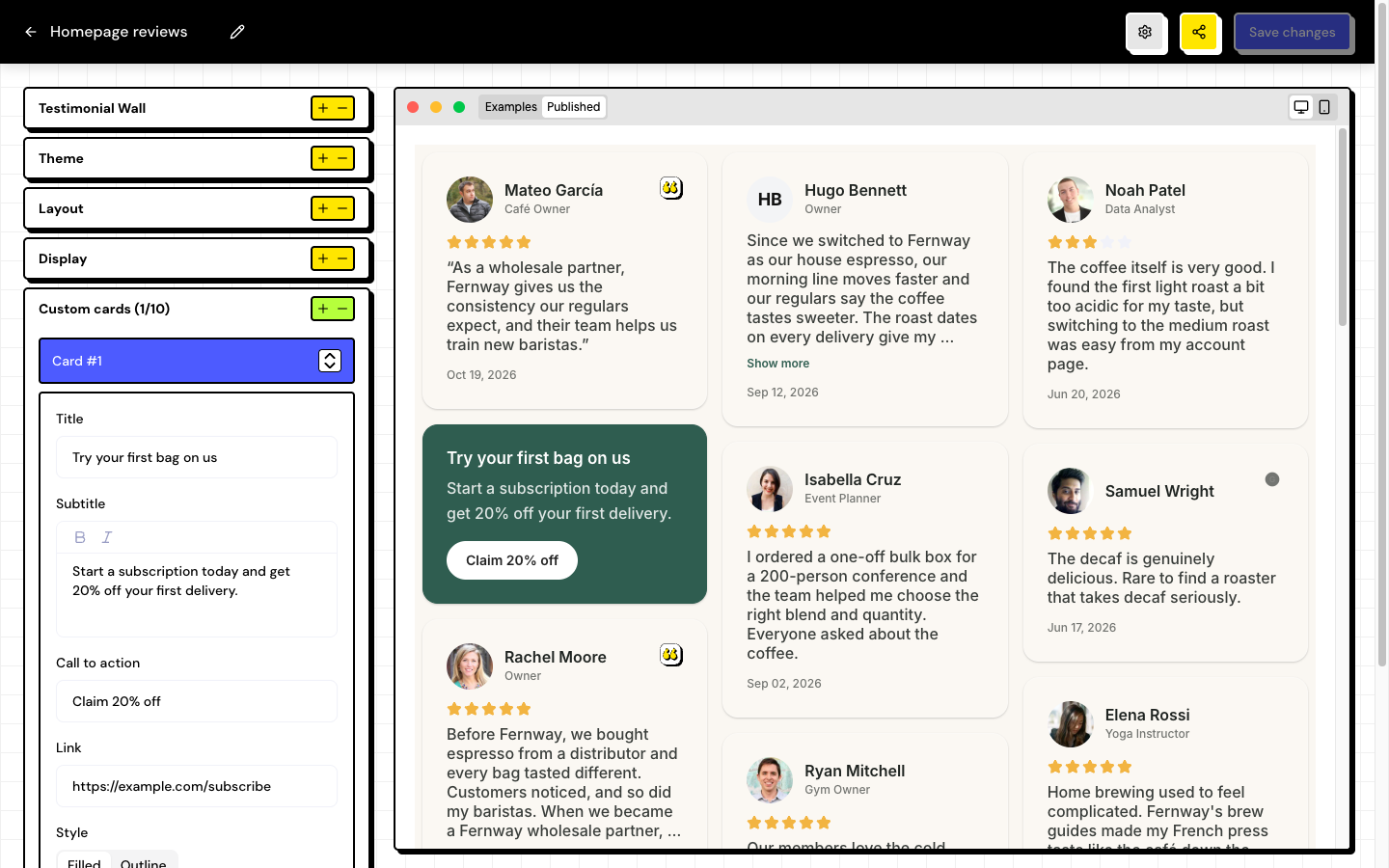
CTA cards (the Custom cards section of the editor) are your own cards, mixed in with the testimonials, with a button that takes visitors wherever you want: a free trial, a booking page, your pricing page.
Available on paid plans. The number of cards per widget depends on your plan. See Plans and limits.
Add a card
Open Custom cards
In the widget editor, open the Custom cards section and click Add card.
Write the content
Fill in Title, Subtitle, Call to action (the button text) and Link.
Choose the style and position
Under Style, choose Filled or Outline. Under Position, say where in the list the card appears.
Save
The card appears in the preview and, once you save, on your website.
Frequently asked questions
Why can’t I add more cards?
The widget has reached your plan’s card limit. Upgrade in Settings › Billing or create another widget.
Does the link open in a new tab?
Yes, the button opens the link in a new tab, and the visitor stays on your website. Use a full link, starting with https://.
Do walls have CTA cards too?
Walls have a CTA between the testimonials and the hero button, both set up in the wall editor.