Edit a case study
The case study editor has three sections: Design, Content and Videos. The preview next to it shows how the page looks.
The editor doesn’t save on its own. Click Save changes before leaving or sharing.
Design
- Template: Editorial, Neubrutal or Spotlight.
- Highlight color: choose a color or use the one from your Brand Kit.
- Cover image: 1200×630 recommended, up to 5 MB.
- Button text and Button link: a call to action at the end of the page. Leave the link empty to hide the button.
- Show Testimoniacs Powered By: can only be turned off on paid plans.
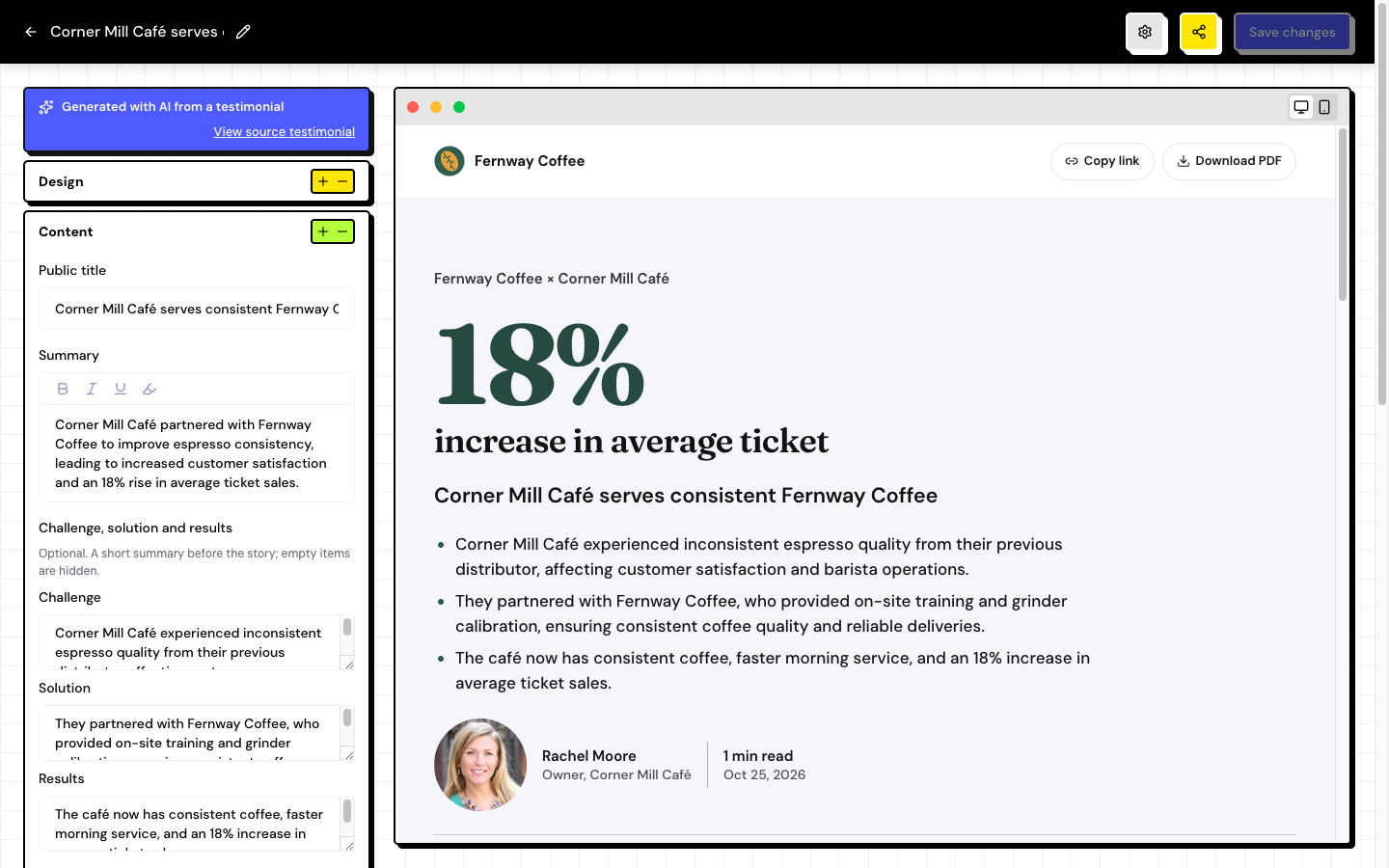
Content
| Field | What it’s for |
|---|---|
| Public title | The page title. |
| Summary | One or two opening sentences. |
| Challenge, solution and results | Optional. A short summary before the story; empty items are hidden. |
| Outcomes | Up to 6 highlight numbers, each with a Value (such as “+40%”) and a Description. |
| Quote | The customer’s highlighted sentence. |
| Content | The full story, with headings, bold, italic, lists, quotes and links from the formatting toolbar. |
Under Tags, organize the case study with the space’s tags.
Videos
Add up to three video testimonials from the space: Top video, Middle video and Bottom video. Click Add video and choose the testimonial.
Frequently asked questions
Can I ask the AI to write it again?
There is no rewrite option. Edit the text, or delete the case study and generate another one from the same testimonial.
A notice said the case study was changed in another session.
Someone saved the case study in another tab or on another computer. Reload the page before saving so you don’t lose that person’s changes.
Can I change the case study’s link?
No. The link is created with the case study and doesn’t change.
Related articles
Last updated on