Create, switch and delete a space
A space holds everything for one brand, product or client. You can have more than one, depending on your plan.
Create
Open the switcher
At the top of the sidebar, click the name of the current space and then Create new space. Or use New Space in the list of spaces.
Give it a name
Fill in Space name. The window shows how many of your plan’s spaces you have already used. The slug is created from the name and can be changed in Settings › General.
Only spaces you own count. Spaces shared with you don’t count toward the limit.
Switch spaces
In the switcher at the top of the sidebar:
- My spaces: the spaces you created.
- Shared with me: other people’s spaces, with your role and the owner.
- Personal account: the list of all your spaces.
Delete
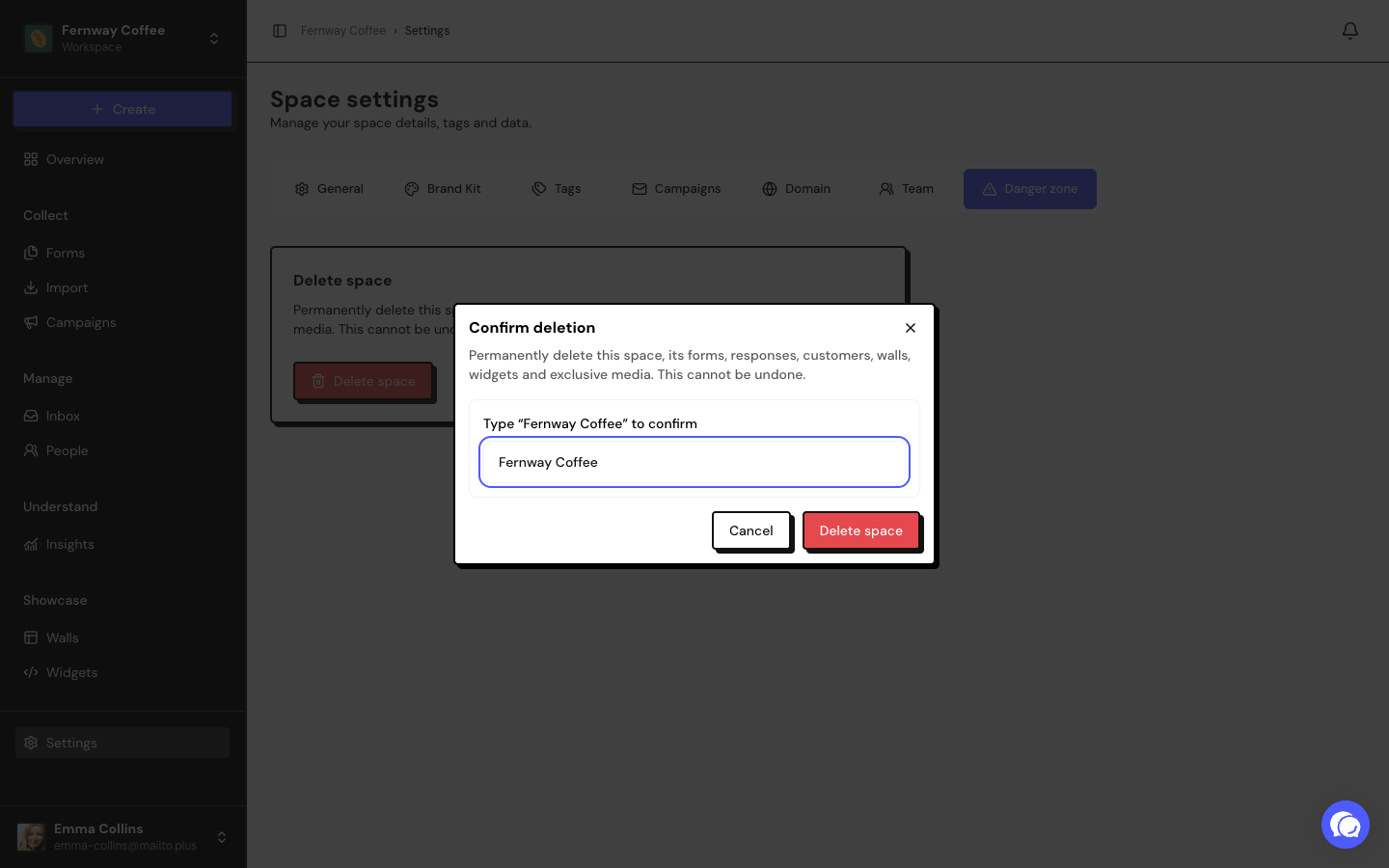
Only the Owner can delete a space, in Settings › Danger zone.
Click Delete space
The Confirm deletion window opens.
Type the name
Type the exact name of the space. The button only becomes active when the name matches.
Deletion is permanent and can’t be undone. It erases the space’s forms, responses and testimonials, media, Walls, Widgets, people, campaigns, case studies, tags, Brand Kit, favicon, custom domain and team. Export what you need first.
Media is erased right afterward. If that cleanup fails, the list of spaces warns you and offers Retry media cleanup.
Frequently asked questions
I moved to a smaller plan and have more spaces than the limit.
No space is deleted. You just can’t create new ones until you are under the limit or upgrade.
Can I delete my only space?
Yes. Afterward, the app invites you to create your first space again.
Can I hand a space over to someone else?
Not yet. You can invite the person as an Admin.