Find responses in the Inbox
The Inbox, in the Manage group of the sidebar, holds all of the space’s testimonials and NPS responses: from forms, campaigns and imports, and the ones added by hand.
Tabs, search and filters
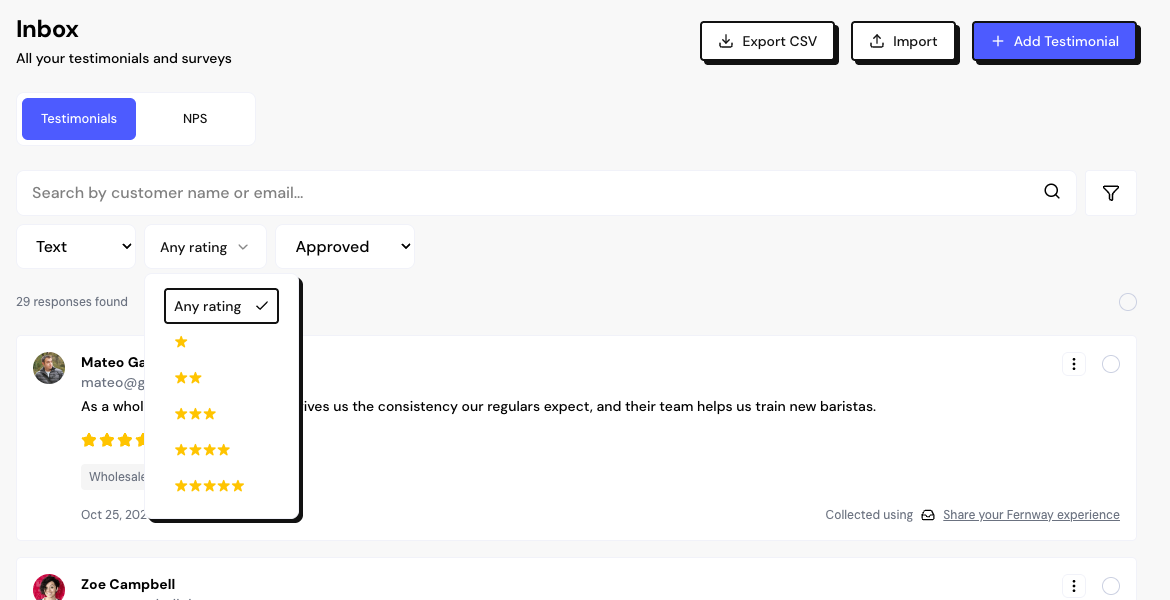
The Inbox has two tabs: Testimonials and NPS. Responses appear as cards, newest first, 20 per page.
- Search: looks up the customer’s name or email. It doesn’t search the testimonial text.
- Filters: click the filter icon next to the search.
The total appears as responses found. Filters are kept while you move around the space. To see everything again, use Clear filters.
To see only the responses from a campaign or an import, open the Inbox from there: Open in Inbox in the campaign, or View in Inbox in the import result. A notice at the top shows the filter and lets you go back.
What a card shows
- The photo, name and email of the person who responded, or Anonymous.
- The text or video, the images and the rating. For NPS, the score and the answers.
- The tags.
- The date and the source form, under Collected using.
New videos show Video is processing for a few moments. If processing fails, replace the file in Edit.
Open the details of a response
Click a card to open the response’s page:
- On the left, the person’s details and the View person link.
- On the right, the response with the actions menu and Other responses from this person, with up to 5 responses.
To see the full history, use View full history in People. To go back, click Inbox.
Frequently asked questions
How do I find testimonials from a form or with a tag?
The Inbox doesn’t filter by form or by tag. For lists like that, use a segment in People, which filters by form and by the responses’ tags, or a Wall’s selection.
Why don’t I see the Inbox in the menu?
The Inbox is for the Editor, Admin and Owner roles. People with the Sharer role don’t see the Inbox.
Can I change the order of the cards?
No. The order follows the response date, newest first. When you edit a testimonial, you can change the date.