NPS survey and promoter invitation
The NPS (Net Promoter Score) survey asks, from 0 to 10, how likely the customer is to recommend you. In Testimoniacs, it can also turn your most satisfied customers into testimonials.
How the score works
The customer chooses a score from 0 to 10. Choosing one is required, and 0 is also a valid answer. The scores form three groups:
| Group | Scores | What it indicates |
|---|---|---|
| Detractors | 0 to 6 | Unhappy customers. |
| Passives | 7 and 8 | Satisfied, but not enthusiastic. |
| Promoters | 9 and 10 | Customers who recommend you. |
The NPS is the percentage of promoters minus the percentage of detractors.
Set up the score page
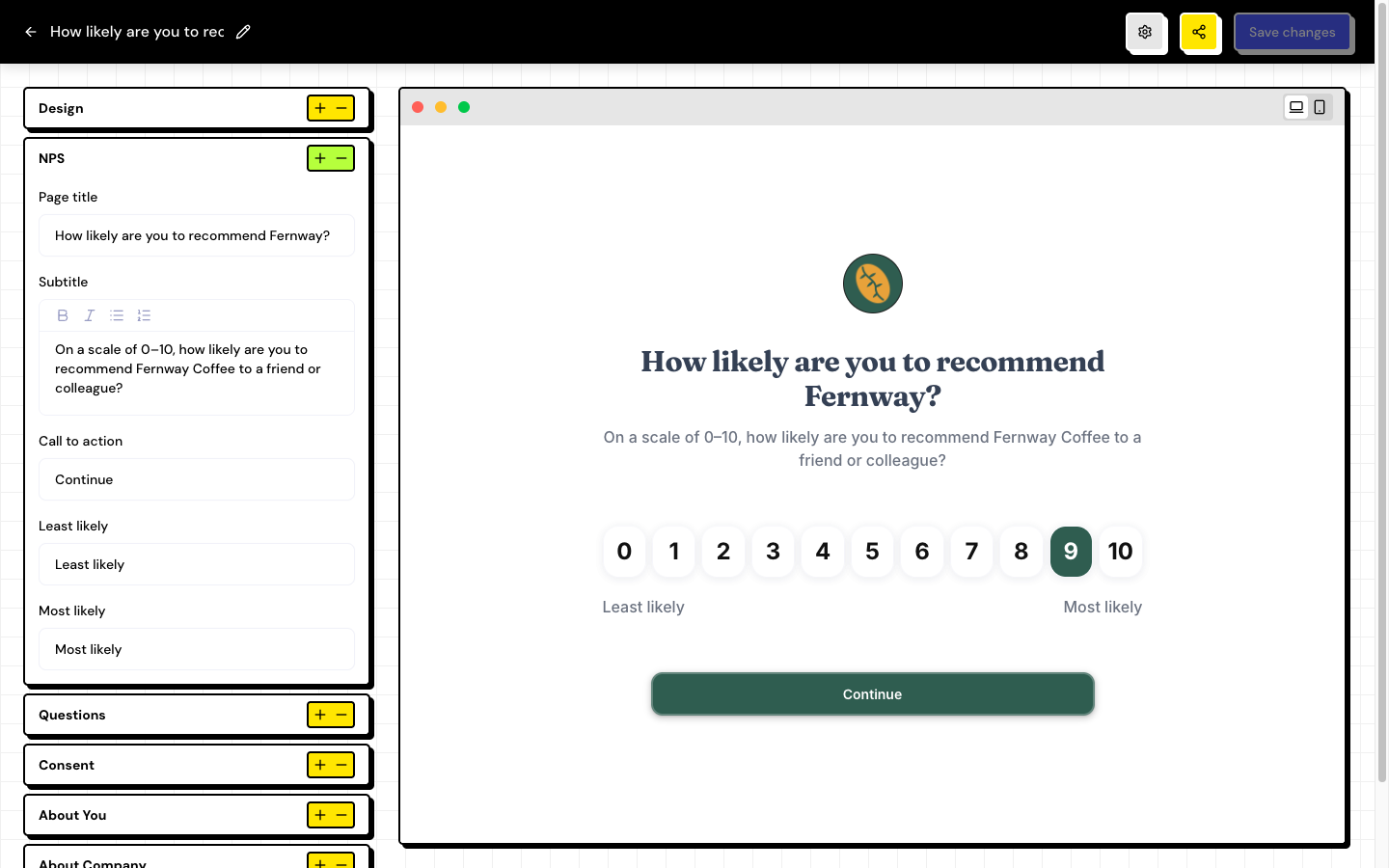
In the editor of an NPS form, open the NPS section. Besides the title, the subtitle and the call to action, you set the texts for the ends of the scale in Least likely and Most likely.
Customize the texts by score
In the questions and the thank-you page of an NPS form, use Customize by score to show a different text for each group. For example: ask for suggestions from people who gave a low score and thank people who gave a 10 enthusiastically.
Open Customize by score
Inside a question or Thank You, open Detractors: 0–6, Passives: 7–8 or Promoters: 9–10.
Write the texts
Fill in the title and subtitle for that group. Anything left blank uses the page’s default text.
Check the preview
When you open a group, the preview shows the form as if the customer had given that score.
Invite promoters to leave a testimonial
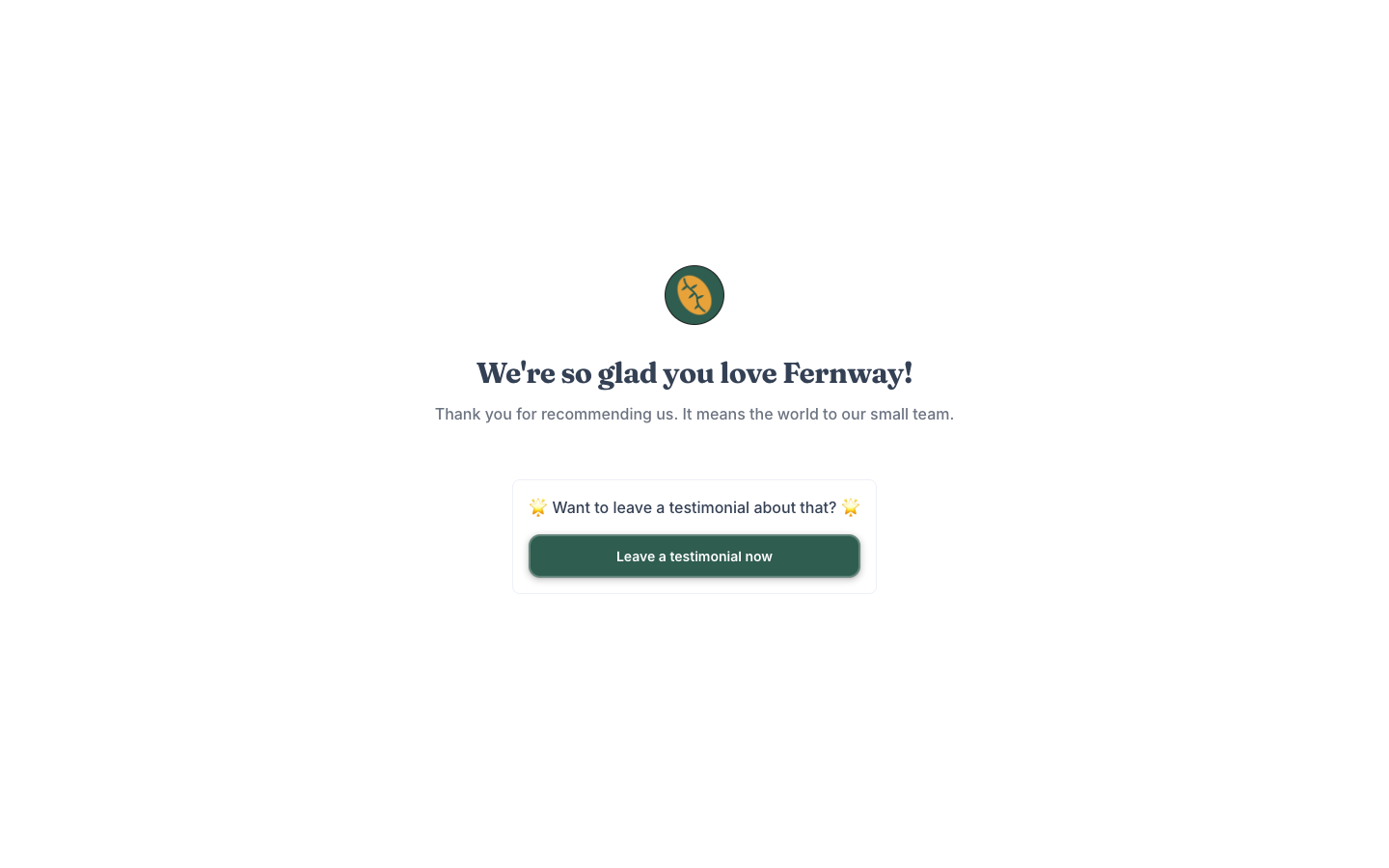
People who give a 9 or 10 can see, on the thank-you page, an invitation to leave a testimonial on one of your testimonial forms.
Open Thank You
In the NPS form editor, open the Thank You section.
Write the invitation
In Promoter invite (score ≥ 9), write the invitation text.
Choose the testimonial form
In Testimonial Form, choose an active testimonial form from this space. To invite no one, choose No invitation.
Save
Click Save changes.
The promoter sees the Leave a testimonial now button. When they click it, the testimonial form opens with their name, email and photo already filled in, if they provided them. The score and the NPS answers aren’t copied to the testimonial.
The invitation only appears if the text is filled in and the chosen testimonial form is accepting responses. If that form is paused or deleted, the invitation stops appearing.
Frequently asked questions
Can the NPS survey be anonymous?
Yes. Turn off the About You and About Company steps, or make every field optional. Without an email, though, the promoter invitation can’t fill in the testimonial’s details.
Do NPS responses need approval?
No. Only testimonials go through approval. NPS responses go straight into the metrics.
Where do I see the survey results?
In the Analysis button on the form’s card, in the Forms list, and in Insights.