Bulk actions, export and delete
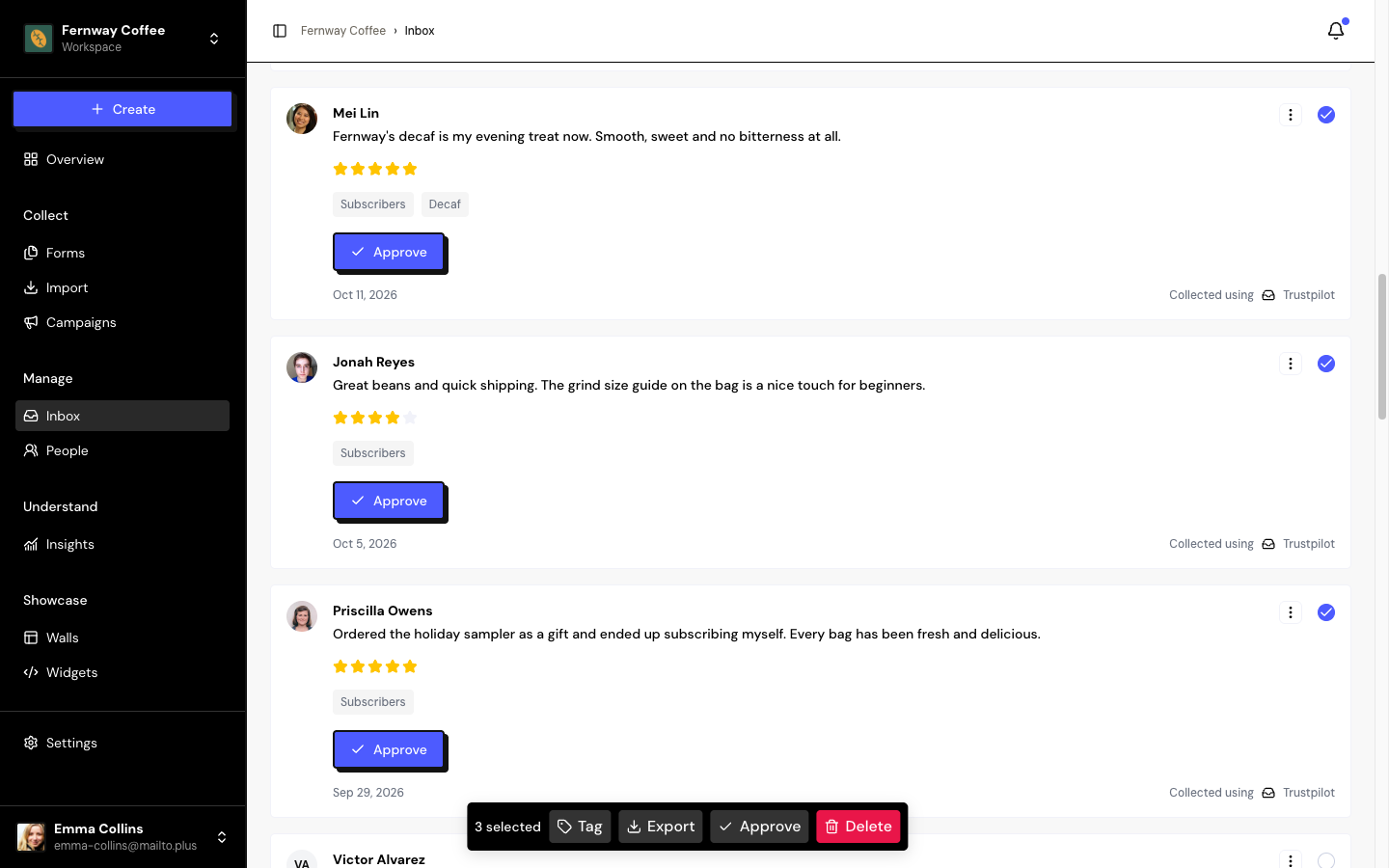
When there are many responses, make changes in bulk: select the cards and use the actions bar that appears at the bottom.
Select responses
- Check the box on each card.
- Or check the box at the top, Select all filtered results, to select every response that matches the search and filters, across all pages.
The bar shows how many are selected and the available actions:
| Action | What it does |
|---|---|
| Tag | Adds or removes tags on all the selected ones. See Organize with tags. |
| Export | Downloads a CSV with only the selected ones from the current tab. |
| Approve | Approves the selected testimonials. Only on the Testimonials tab. |
| Delete | Deletes the selected ones, after you confirm. |
Each bulk action accepts up to 5,000 responses at a time. Highlighting and unapproving are done one by one, from the card’s ⋮ menu.
Export to CSV
The file includes, among other things: type, name, email, rating, text, status, tags, source and dates. Column names and statuses come out in English, to make them easier to use in other tools.
Delete responses
Delete one response from the card’s ⋮ menu, or several from the actions bar, and click Confirm.
Deletion is permanent. There is no trash and no way to restore.
- The person who responded stays in People.
- The testimonial leaves Walls and Widgets.
- A case study generated from it still exists.
- Deleting a testimonial frees up room in your plan limit.
Frequently asked questions
How do I export only the approved testimonials?
Filter by Status Approved, check Select all filtered results and use Export in the actions bar.
Some responses weren’t updated.
The ones that failed stay selected. The most common reason is a testimonial over the plan limit, which can’t be approved.
The CSV opens with garbled accents in Excel.
The file is UTF-8. In Excel, use Data › From Text/CSV and choose UTF-8 encoding.