Create a widget
A widget shows testimonials inside a page of your website, such as the home page or the pricing page. You build the widget in Testimoniacs and paste a snippet into your website.
Widgets and walls combined have a limit per account, depending on your plan. When you reach the limit, the Widgets screen lets you know.
Create
Open Widgets
In the sidebar, under Showcase, click Widgets and then Create New.
Give it a name
The name is only visible to you and your team. The editor opens right after.
Choose the testimonials
In Testimonial Wall, use Auto-add with filters or manual selection. It works the same as on walls.
Adjust the look and save
Set up Theme, Layout and Display and save. Then install the code on your website.
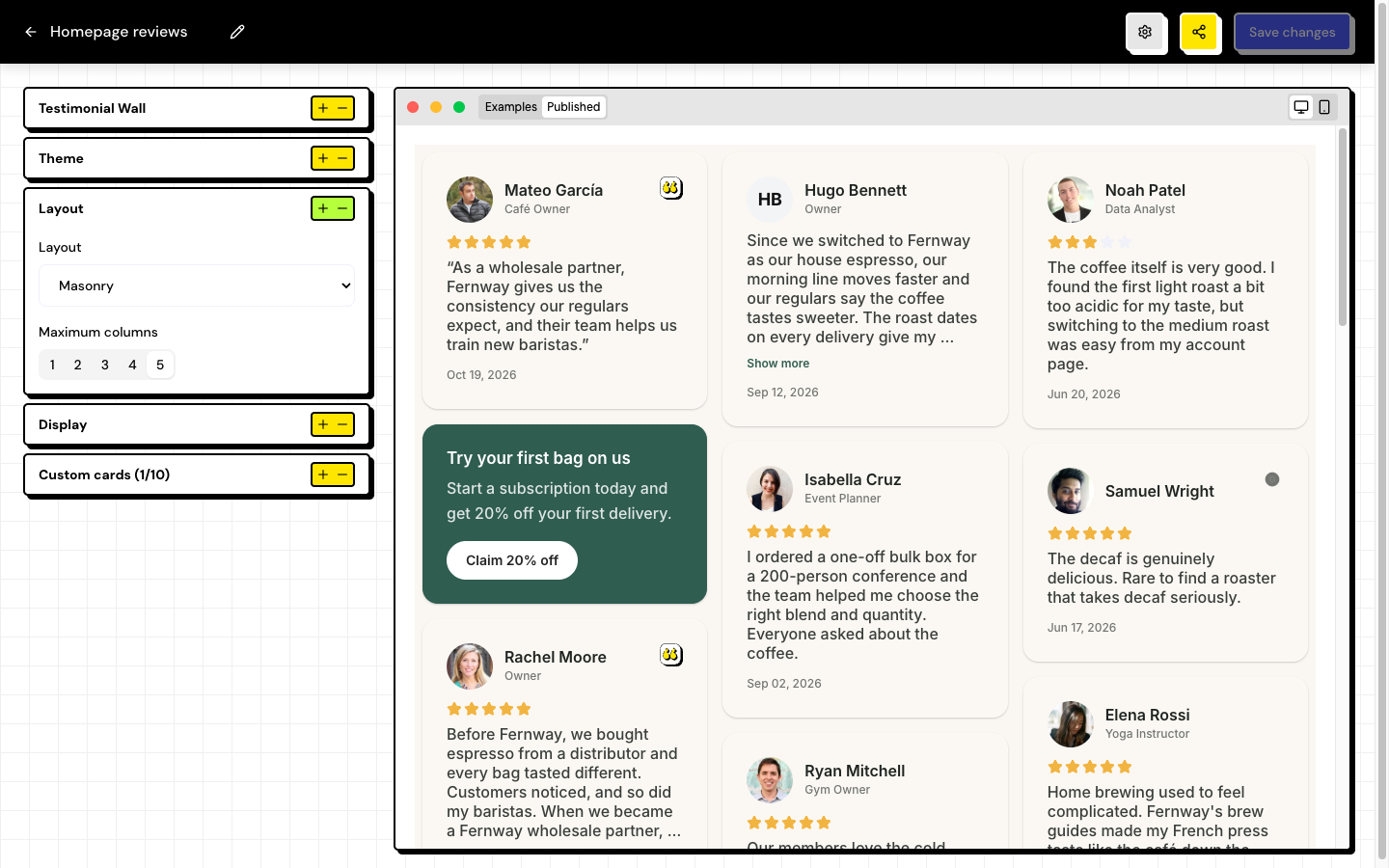
Masonry or carousel
Preview
The Live preview has two options: Examples shows sample testimonials so you can test the look, and Published shows your real testimonials.
Publish and delete
A new widget is published from the start. In the gear, Widget settings, you turn off Published to take the widget offline or use Delete Widget. Deleting frees up a slot in your plan limit and keeps the testimonials.
Frequently asked questions
What’s the difference between a widget and a wall?
A wall is a page of its own, with a link. A widget goes inside a page of your website.
The preview shows testimonials that aren’t mine.
You’re on Examples. Switch to Published.
Who can create widgets?
Editor, Admin and Owner. The Sharer role sees widgets and copies the code, but can’t edit them.