Review, import and undo
Before importing, you check each row and choose how the testimonials enter the Inbox. Afterward, you can see the result, open the imported testimonials and, if needed, undo everything.
Review the rows
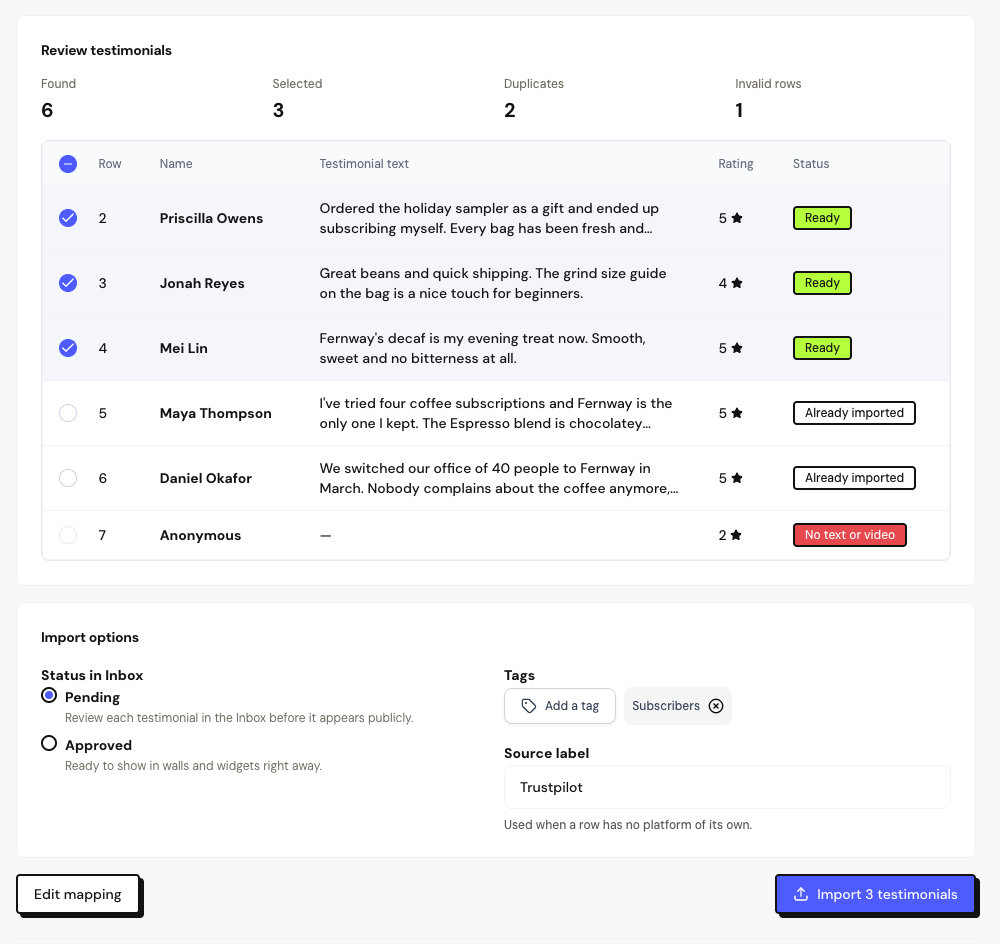
The Review testimonials screen shows how many were Found, Selected, Duplicates and Invalid rows. Each row has a status:
| Status | What it means |
|---|---|
| Ready | Will be imported. |
| Repeated in file / Already imported | Duplicate. It isn’t imported again. |
| No text or video | Invalid row. It can’t be imported. |
| Warnings (rating, date, email or link not recognized) | The row is imported, but without the problematic value. |
Valid rows come already checked. Uncheck the ones you don’t want to import. You can’t edit the text of the rows here; edit it later, in the Inbox.
A testimonial is considered a duplicate, in this space, when it has the same review ID and platform, or the same original link, or the same name, date and beginning of the text.
Choose the options and import
Choose the status
In Status in Inbox, choose Pending (default) to review each testimonial before publishing, or Approved so they can already appear on Walls and Widgets.
Add tags
In Tags, choose tags from the space to tag every testimonial in this import.
Set the source
In Source label, write where they came from, for example Google or Trustpilot. It applies to the rows that don’t include the platform.
Import
Click Import. Keep the page open until the rows finish uploading.
What happens to people and media
- People: with an email, the testimonial is linked to the person who already exists with that email, or creates a new one. With only a name, it creates a new person.
- Avatars and images: they are copied to Testimoniacs in the background. You can leave the page.
- Videos: they need to be direct links to the video file. Videos over your plan’s limit stay as a link to the original.
Testimonials go into the current space, with no form linked. People created by the import start without confirmed contact permission and don’t receive campaigns until you record the permission in People.
See the result
When it finishes, Import complete appears with the imported rows, duplicates, invalid rows and videos kept as links. From here you can:
- View in Inbox: opens the Inbox showing only the testimonials from this import.
- Download error report: lists the rows and media with problems.
- Import another file.
Recent imports, on the Import page, holds the last 20 imports. If you left the page midway, use Resume import.
Undo an import
This removes the imported testimonials and the people created by the import who have no other activity. These are kept:
- testimonials you edited after importing. Approving a pending testimonial counts as an edit; adding tags doesn’t;
- testimonials used on Walls or case studies.
To also remove the kept ones, use Remove kept testimonials. This removal is permanent and takes the testimonials off the Walls and case studies.
There’s no deadline to undo, but only completed imports can be undone.
Frequently asked questions
I imported with the wrong status.
Undo the import and import again with the right status. Or adjust the testimonials in the Inbox, with bulk actions.
Why did some videos stay as links?
The link wasn’t a direct link to a video file, the video was over the plan’s limit or the import had more than 50 videos.
I closed the page during the import. Did I lose everything?
If the rows had already finished uploading, resume in Recent imports. If you closed it during the upload, nothing was imported: upload the file again.