Profile, language and sign-in
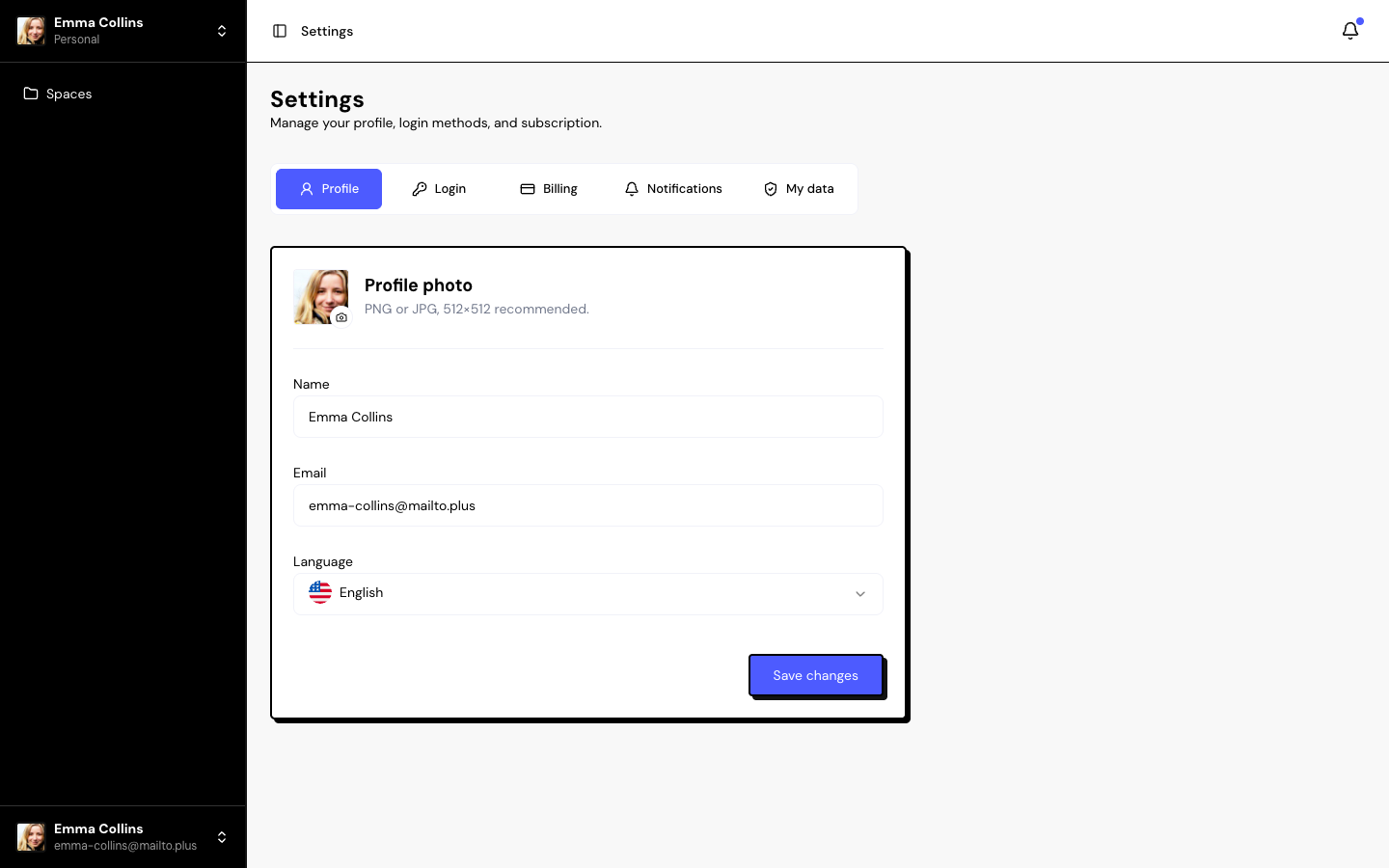
Your account details are in Settings, in the account menu at the bottom of the sidebar. The Profile and Login tabs cover who you are and how you sign in.
Profile
- Profile photo: PNG or JPG, up to 5 MB, 512×512 recommended. Click Change photo; the photo is saved right away.
- Name and Language (English, Português (BR) or Español): saved with Save changes.
- Email: read-only. To change your account email, contact support.
Your account language is also the language your customers see in the forms, Walls, Widgets, case studies and emails of the spaces you own. Changing the language changes those pages.
The language also applies to the app’s interface, to the emails you receive and to the default texts of new spaces.
Login
Under Login methods:
- Email and password: shows whether it’s active.
- Google: click Connect to sign in with your Google account, or Disconnect. You need at least one active login method.
Change password
Fill in Current password, New password and Confirm new password and click Update password. Use at least 8 characters, with letters and numbers.
Forgot your password? On the sign-in screen, click Forgot your password? and follow the link you get by email.
Frequently asked questions
I changed the language and my forms changed language.
That’s expected: the public pages of your spaces follow the Owner’s account language.
Can I sign in with a magic link, without a password?
No. Sign in with email and password or with Google.
Can I disconnect Google?
Yes, if you have email and password active. Without another method, the app won’t let you.