Use the Overview and the checklist
The Overview is the first page of every space. It shows the activity for the period, what’s waiting for you and, while the space is new, a checklist with the first steps.
First steps checklist
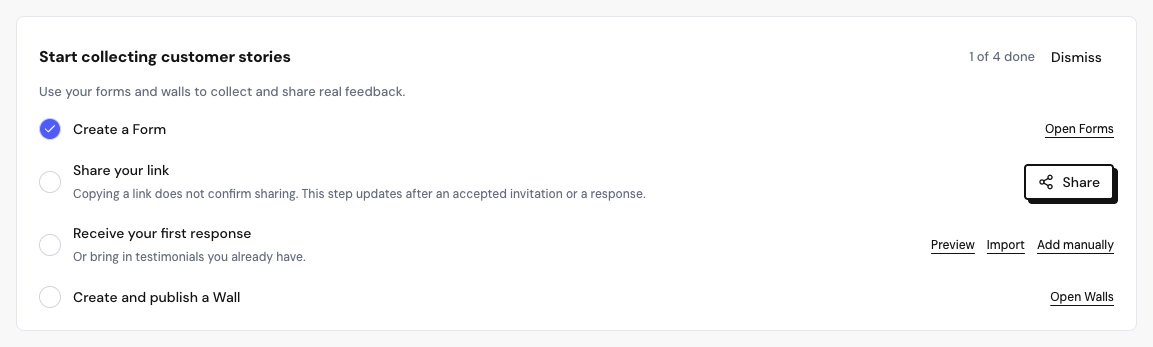
In a new space, the Start collecting customer stories checklist appears at the top, with your progress (for example, “2 of 4 done”):
| Step | When it’s marked done |
|---|---|
| Create a Form | When the space has at least one form. |
| Share your link | When someone accepts an email invitation or submits a response. |
| Receive your first response | When the first response arrives. |
| Create and publish a Wall | When you publish a Wall. |
Copying the link doesn’t count as sharing. The Share your link step is only checked off after an accepted invitation or a response.
The checklist goes away when all four steps are done. If you don’t want to see it, click Dismiss. It belongs to each space: dismissing it in one space doesn’t affect the others.
Metrics for the period
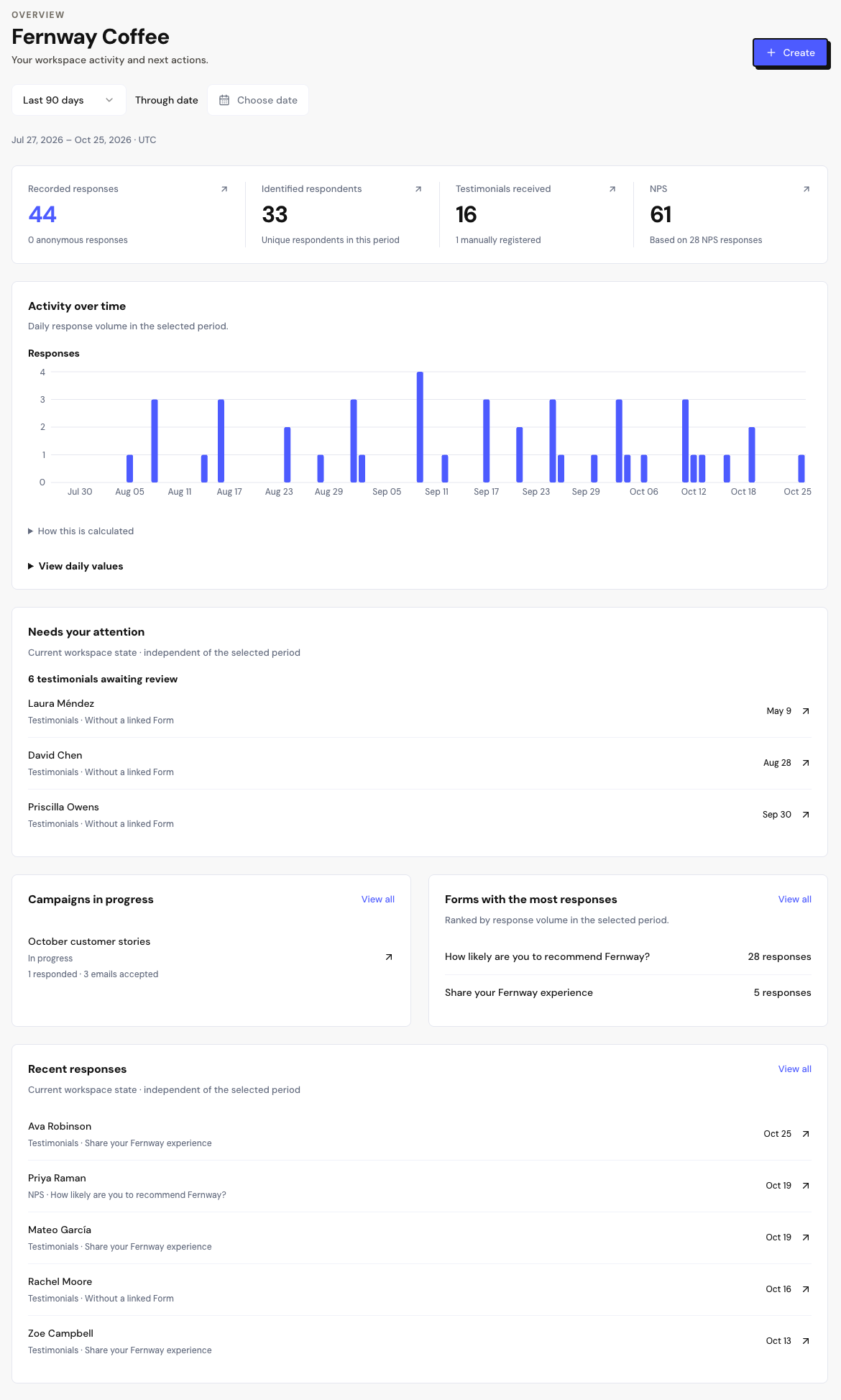
Four numbers sum up the chosen period. The default is 30 days; you can also see 7 or 90 days, or pick a date.
| Metric | What it counts |
|---|---|
| Recorded responses | All form responses in the period, both testimonial and NPS. |
| Identified respondents | Unique people who responded in the period. |
| Testimonials received | Testimonials that arrived in the period. |
| NPS | The NPS for the period. Shows ”—” when there are no NPS responses yet. |
Click a metric to open the details in Insights, with the same period.
What else is on the page
Needs your attention
Shows the current state of the space, regardless of the period:
- Testimonials waiting for review in the Inbox, with a shortcut to the most recent ones.
- Campaigns that need attention, such as the ones that hit the email quota.
When nothing is pending, you see All caught up. No pending actions.
Frequently asked questions
I dismissed the checklist by mistake. How do I bring it back?
For now there’s no way to reopen the checklist after dismissing it. The same actions are still available in Forms, Inbox and Walls.
Why does the NPS show ”—”?
The space hasn’t received any NPS responses in the chosen period yet. Create an NPS form or widen the period.
Does opening the Overview start an AI analysis?
No. The page only shows the progress of analyses that are already running.