Create a campaign
A campaign sends an email invitation to answer one of your forms. Use a testimonial form to ask for testimonials or an NPS form to ask for a score. Each person gets their own link, and the responses are tied to the campaign.
Before your first campaign, set up the sender in Settings › Campaigns. Only people with authorized contact permission receive invitations.
The four steps
Configuration
In Campaigns, click New campaign. Enter a Campaign name (only you see it), choose the Form and set When to send. Click Save and choose audience.
Audience
Choose Selected people (up to 100 contacts, one by one) or Saved segment. Click Save and prepare message.
Message
Write the Subject and the Invitation text, include the form link and adjust the reminders. Click Save and review.
Review
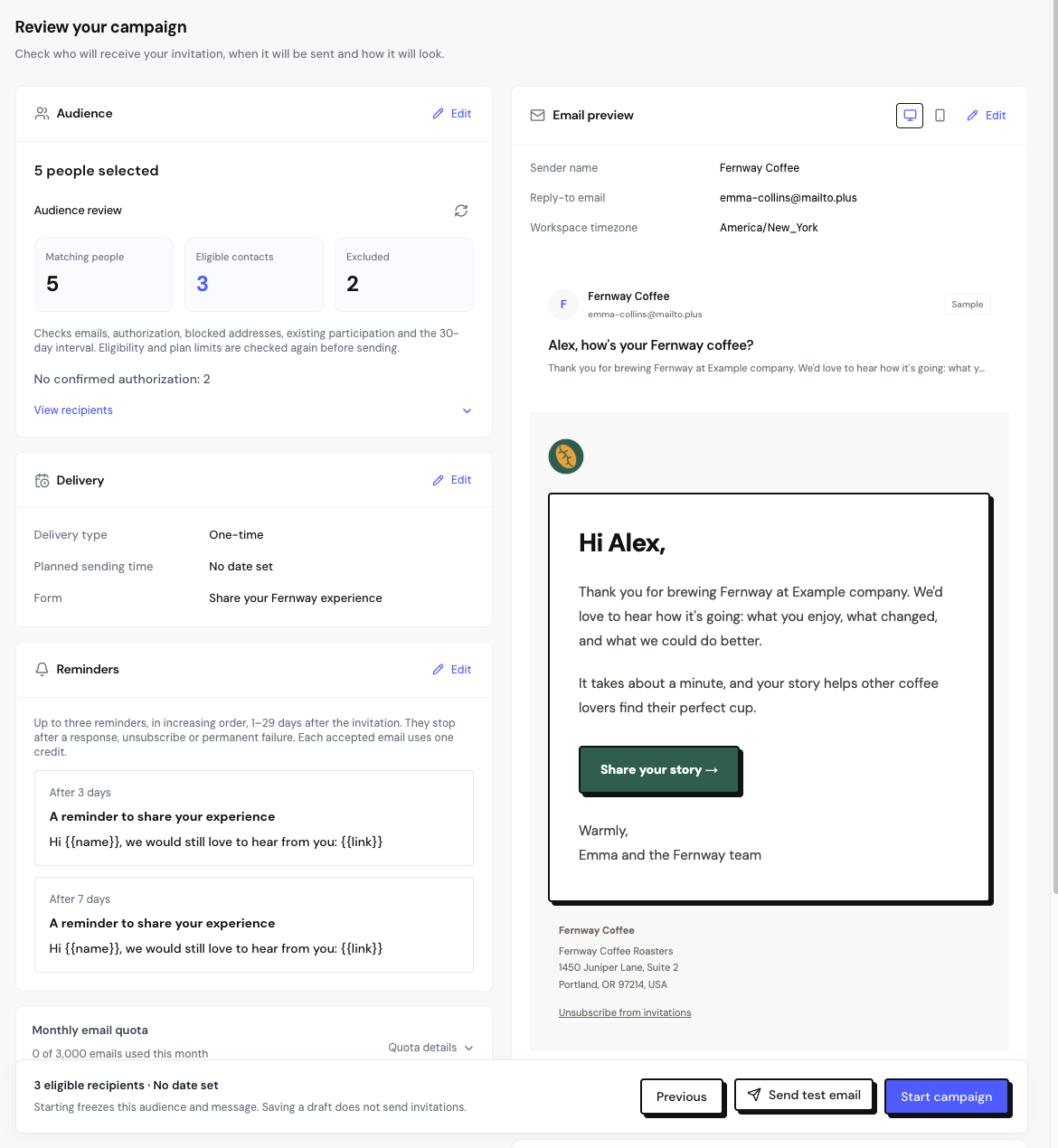
Check the audience, delivery, reminders and the email preview. Resolve the items under Complete before sending and click Start campaign or Schedule campaign.
The draft is saved every time you move to the next step, and no email goes out before you confirm in the review. To save without moving on, use Save draft.
Write the message
Use the Insert into text buttons to add the variables:
| Variable | Becomes |
|---|---|
{{name}} | The person’s name. |
{{company}} | The person’s company, as it appears in People. Empty if there isn’t one. |
{{link}} | The individual link to the form. Required. |
End a paragraph with a label and the link, like Share your experience: {{link}}, and it becomes a button in the email. No text ready? Click View suggested text.
To change the sender for this campaign only, open Customize sender and fill in Sender name and Reply-to email.
Send a test email
In the Message step or in the Review, click Send test email. The test goes only to your account’s email, with “[Test]” in the subject, and uses one email credit. First, save the draft with the form, the subject and the {{link}} filled in.
Frequently asked questions
Can I send a campaign to a CSV list?
Recipients always come from People. Import the list in People › Import CSV, with the contact permission column, and then choose the people or a segment in the campaign.
Can I change a campaign after it starts?
No. When it starts, the configuration is frozen and becomes read-only. You can pause, resume or archive it. To change something, create a new campaign.
Can I delete a draft?
Drafts can be archived from the ⋯ menu. There’s no option to delete them.